Documentation
Welcome to the Nebula Commander documentation.
This section contains guides for installing, configuring, and using Nebula Commander:
- Getting started – What Nebula Commander is, features, and prerequisites
- Server Installation – Docker (recommended), NixOS
- Server Configuration – Environment variables, OIDC, and how to configure everything
- Web UI – Networks, Groups, Nodes, Client Download, Invitations
- Client Usage – ncclient (experimental), nebula (preferred)
- Development – Setup, GitHub Actions, manual builds, API
When the backend is running, interactive API docs are available at /api/docs.
1 - Getting Started
Nebula Commander is a self-hosted control plane for Nebula overlay networks. You run the server yourself and manage networks, nodes, certificates, and access from a web UI and optional device client.
Features
- Networks and nodes – Create networks, manage nodes, IP allocation, and certificates
- Web UI – React dashboard with OIDC (for example, Keycloak) or a dev token for local development
- Device client (ncclient) – Enroll devices with a one-time code, then run as a daemon to pull config and certificates and optionally run or restart Nebula when config changes. Install with
pip install nebula-commander; see ncclient for details.
Status
Early development. Core APIs and UI are implemented.
Prerequisites
- Nebula – You need Nebula installed on devices that will join your networks. Nebula Commander issues certificates and config; the Nebula binary runs on each node.
- Server – A machine or container to run the backend (and optionally the frontend). Python 3.10+ for development; Docker or NixOS for deployment.
Next steps
- Choose an installation method (Docker or NixOS), or development setup for local hacking.
- Configure the backend (database, JWT, and optionally OIDC and SMTP).
- Use the Web UI and ncclient as needed.
License
Backend and frontend: MIT. Client (ncclient): GPLv3 or later. See the repository for details.
2 - Server Installation
You can run Nebula Commander in several ways:
| Method | Best for |
|---|
| Docker (recommended) | Quick start and production: pre-built images, docker compose |
| NixOS | NixOS hosts: systemd module with options for port, database, certs, JWT |
| Reverse Proxy | Nginx, Traefik, or Caddy in front with TLS and HSTS |
Choose one and follow the linked page. For local development (venv, uvicorn, frontend dev server), see Development: Setup. After installation, see Server Configuration to set the database, JWT, and optional OIDC.
2.1 - Docker
Run Nebula Commander with Docker using pre-built images or a local build. You can download all required files without cloning the repository. For HTTPS and HSTS at the edge (Nginx, Traefik, or Caddy in front of the frontend container), see Reverse Proxy.
Downloading files
You need: docker-compose.yml, docker-compose-keycloak.yml, .env.example, and the env.d.example/ directory (backend and Keycloak config). Either use the commands below or the provided script.
Using curl
Run these in an empty directory (or where you want the Docker setup):
BASE_URL="https://raw.githubusercontent.com/NixRTR/nebula-commander/main/docker"

curl -sSL -o docker-compose.yml "${BASE_URL}/docker-compose.yml"
curl -sSL -o docker-compose-keycloak.yml "${BASE_URL}/docker-compose-keycloak.yml"
curl -sSL -o .env.example "${BASE_URL}/.env.example"

mkdir -p env.d.example/keycloak
curl -sSL -o env.d.example/backend "${BASE_URL}/env.d.example/backend"
curl -sSL -o env.d.example/keycloak/keycloak "${BASE_URL}/env.d.example/keycloak/keycloak"
curl -sSL -o env.d.example/keycloak/postgresql "${BASE_URL}/env.d.example/keycloak/postgresql"
Then create the Docker network (required by the compose files):
docker network create nebula-commander
Copy the example env into place and edit as needed:
cp .env.example .env
cp -r env.d.example env.d
# Edit env.d/backend (JWT secret, OIDC, etc.)
Using the download script
The repository provides a script that downloads the same files and checks for prerequisites. It does not install anything; if Docker or Docker Compose is missing, it prints what you need and exits.
curl -sSL https://raw.githubusercontent.com/NixRTR/nebula-commander/main/docker/download.sh | bash
Then run the steps the script prints: copy .env.example to .env, copy env.d.example to env.d, edit env.d/backend, create the network, and start with docker compose up -d.
Example file contents
Below are the default file contents for reference. After downloading, copy to .env and env.d/ and customize.
docker-compose.yml
name: nebulacdr

include:
  - path: ./docker-compose-keycloak.yml

services:

  backend:
    build:
      context: ..
      dockerfile: docker/backend/Dockerfile
    image: ghcr.io/nixrtr/nebula-commander-backend:latest
    container_name: nebula-commander-backend
    restart: unless-stopped
    ports:
      - "${BACKEND_PORT:-8081}:8081"
    volumes:
      # Persistent data storage
      - nebula-commander-data:/var/lib/nebula-commander
      # Optional: mount JWT secret file
      - ${JWT_SECRET_FILE:-/dev/null}:/run/secrets/jwt-secret:ro
    env_file:
      # Backend configuration (database, JWT, OIDC, CORS, debug)
      - env.d/backend
    environment:
      - NEBULA_COMMANDER_SERVER_HOST=0.0.0.0
      - NEBULA_COMMANDER_SERVER_PORT=8081
    healthcheck:
      test: ["CMD", "python3", "-c", "import urllib.request; urllib.request.urlopen('http://localhost:8081/api/health')"]
      interval: 30s
      timeout: 10s
      retries: 3
      start_period: 10s
    networks:
      - nebula-commander

  frontend:
    build:
      context: ..
      dockerfile: docker/frontend/Dockerfile
    image: ghcr.io/nixrtr/nebula-commander-frontend:latest
    container_name: nebula-commander-frontend
    restart: unless-stopped
    ports:
      - "${FRONTEND_PORT:-80}:80"
    depends_on:
      backend:
        condition: service_healthy
    healthcheck:
      test: ["CMD", "curl", "-f", "http://localhost/health"]
      interval: 30s
      timeout: 10s
      retries: 3
      start_period: 5s
    networks:
      - nebula-commander

networks:
  nebula-commander:
    external: true

volumes:
  nebula-commander-data:
    driver: local
docker-compose-keycloak.yml
# Keycloak OIDC Authentication Stack
# To use: docker compose -f docker-compose.yml -f docker-compose-keycloak.yml up -d

services:
  keycloak_db:
    image: postgres:16-alpine
    container_name: keycloak-db
    restart: unless-stopped
    env_file:
      - env.d/keycloak/postgresql
    volumes:
      - keycloak-db-data:/var/lib/postgresql/data
    networks:
      - nebula-commander
    healthcheck:
      test: ["CMD-SHELL", "pg_isready -U ${POSTGRES_USER:-keycloak}"]
      interval: 10s
      timeout: 5s
      retries: 5
      start_period: 10s

  keycloak:
    build:
      context: ..
      dockerfile: docker/keycloak/Dockerfile
    image: ghcr.io/nixrtr/nebula-commander-keycloak:latest
    container_name: keycloak
    restart: unless-stopped
    env_file:
      - env.d/keycloak/keycloak
      - env.d/backend
    ports:
      - "${KEYCLOAK_PORT:-8080}:8080"
      - "${KEYCLOAK_ADMIN_PORT:-9000}:9000"
    depends_on:
      keycloak_db:
        condition: service_healthy
    networks:
      - nebula-commander
    healthcheck:
      test: ["CMD-SHELL", "exec 3<>/dev/tcp/127.0.0.1/8080 && echo -e 'GET /health/ready HTTP/1.1\\r\\nhost: 127.0.0.1\\r\\nConnection: close\\r\\n\\r\\n' >&3 && cat <&3 | grep -q '200 OK'"]
      interval: 30s
      timeout: 10s
      retries: 5
      start_period: 60s

volumes:
  keycloak-db-data:
    driver: local

networks:
  nebula-commander:
    external: true
.env.example
# Nebula Commander Docker Infrastructure Configuration
# Copy to .env and customize. Backend settings go in env.d/backend.

# Port for the frontend (Nginx)
FRONTEND_PORT=80

# Port for the backend (FastAPI)
# BACKEND_PORT=8081

# Port for Keycloak (when using docker-compose-keycloak.yml)
# KEYCLOAK_PORT=8080

# Path to JWT secret file on host (optional)
# JWT_SECRET_FILE=/path/to/jwt-secret.txt
env.d.example/backend
Full example. See Configuration: Environment for all options.
# =============================================================================
# Nebula Commander Backend Configuration
# =============================================================================
# All variables use the NEBULA_COMMANDER_ prefix.

# Database
NEBULA_COMMANDER_DATABASE_URL=sqlite+aiosqlite:////var/lib/nebula-commander/db.sqlite
NEBULA_COMMANDER_CERT_STORE_PATH=/var/lib/nebula-commander/certs

# JWT (generate with: openssl rand -base64 32)
NEBULA_COMMANDER_JWT_SECRET_KEY=CHANGE_ME_GENERATE_RANDOM_32_CHARS_MIN
NEBULA_COMMANDER_JWT_ALGORITHM=HS256
NEBULA_COMMANDER_JWT_EXPIRATION_MINUTES=1440

# Public URL (FQDN or host:port)
NEBULA_COMMANDER_PUBLIC_URL=https://nebula.example.com

# OIDC (optional)
NEBULA_COMMANDER_OIDC_ISSUER_URL=http://keycloak:8080/realms/nebula-commander
NEBULA_COMMANDER_OIDC_PUBLIC_ISSUER_URL=https://auth.example.com/realms/nebula-commander
NEBULA_COMMANDER_OIDC_CLIENT_ID=nebula-commander
NEBULA_COMMANDER_OIDC_CLIENT_SECRET=YOUR_KEYCLOAK_CLIENT_SECRET_HERE
NEBULA_COMMANDER_OIDC_SCOPES=openid profile email

# CORS (include your public URL)
NEBULA_COMMANDER_CORS_ORIGINS=https://nebula.example.com
NEBULA_COMMANDER_SESSION_HTTPS_ONLY=false
NEBULA_COMMANDER_ALLOWED_REDIRECT_HOSTS=

# SMTP (optional)
NEBULA_COMMANDER_SMTP_ENABLED=false
NEBULA_COMMANDER_SMTP_HOST=smtp.gmail.com
NEBULA_COMMANDER_SMTP_PORT=587
NEBULA_COMMANDER_SMTP_USE_TLS=true
NEBULA_COMMANDER_SMTP_USERNAME=your-email@gmail.com
NEBULA_COMMANDER_SMTP_PASSWORD=your-app-password
NEBULA_COMMANDER_SMTP_FROM_EMAIL=noreply@example.com
NEBULA_COMMANDER_SMTP_FROM_NAME=Nebula Commander

# Debug (disable in production)
NEBULA_COMMANDER_DEBUG=true
env.d.example/keycloak/keycloak
# Keycloak Configuration
KC_DB=postgres
KC_DB_URL_HOST=keycloak_db
KC_DB_URL_PORT=5432
KC_DB_URL_DATABASE=keycloak
KC_DB_USERNAME=keycloak
KC_DB_PASSWORD=keycloak_db_password

KC_BOOTSTRAP_ADMIN_USERNAME=admin
KC_BOOTSTRAP_ADMIN_PASSWORD=admin

KC_HOSTNAME=localhost
KC_HOSTNAME_STRICT=false
KC_HTTP_ENABLED=true
KC_HEALTH_ENABLED=true
KC_METRICS_ENABLED=true
KC_LOG_LEVEL=info
env.d.example/keycloak/postgresql
# PostgreSQL Configuration for Keycloak
POSTGRES_DB=keycloak
POSTGRES_USER=keycloak
POSTGRES_PASSWORD=keycloak_db_password
Quick start (pre-built images)
After you have the files and env.d/backend configured:
docker network create nebula-commander   # if not already created
docker compose pull
docker compose up -d
docker compose logs -f
The application is available at http://localhost (or the port set in .env).
Building locally
If you prefer to build images instead of pulling:
docker compose build
docker compose up -d
See Development: Manual builds for build-args and multi-arch builds.
Images
| Image | Registry | Base | Port | Platforms |
|---|
| Backend | ghcr.io/nixrtr/nebula-commander-backend:latest | Python 3.13-slim | 8081 | linux/amd64, linux/arm64 |
| Frontend | ghcr.io/nixrtr/nebula-commander-frontend:latest | nginx:alpine | 80 | linux/amd64, linux/arm64 |
| Keycloak | ghcr.io/nixrtr/nebula-commander-keycloak:latest | Keycloak | 8080 | linux/amd64, linux/arm64 |
Architecture
- Frontend (Nginx) – Serves the React SPA and proxies
/api/* to the backend. Port 80. - Backend (FastAPI) – REST API, certificate management, SQLite. Port 8081.
- Persistent volume – SQLite database and Nebula certificates under
/var/lib/nebula-commander.
Frontend (Nginx) :80 --> Backend (FastAPI) :8081 --> Volume (db + certs)
Configuration
Use two places:
- Infrastructure –
.env: ports, optional JWT secret file path. - Backend –
env.d/backend: all NEBULA_COMMANDER_* variables (database, JWT, OIDC, CORS, SMTP, debug).
See Configuration for full option lists.
With Keycloak (OIDC)
To use Keycloak for login:
docker compose -f docker-compose.yml -f docker-compose-keycloak.yml up -d
Configure OIDC in env.d/backend and optionally use the zero-touch Keycloak setup. Details: Configuration: OIDC.
Without Keycloak
Run only the backend and frontend. The backend exposes /api/auth/dev-token when OIDC is not configured (suitable for development only).
2.2 - NixOS
Run Nebula Commander as a NixOS service by adding the module and enabling the service. You can add the module from a local path (clone) or, when available, from a flake.
Adding the module (path-based, no flake)
Use this when you have the nebula-commander repository on disk (for example under /etc/nixos or a path you manage).
1. Get the repository
Clone or copy the nebula-commander repo so that the path contains both nix/ and backend/:
git clone https://github.com/NixRTR/nebula-commander.git /etc/nixos/nebula-commander
# Or use a path of your choice; the module expects ../../backend relative to nix/module.nix
2. Import the module in your NixOS configuration
In configuration.nix (or a NixOS module you include), add the import and enable the service:
{
  imports = [
    /etc/nixos/nebula-commander/nix/module.nix
  ];

  services.nebula-commander.enable = true;
}
If you use a different path, use that path in imports, for example ./nebula-commander/nix/module.nix if the repo is in the same directory as your configuration.nix.
3. Optional: set options
Override any of the options (see the table below). The default package builds the backend from the same repo: it copies backend/ from the path relative to nix/module.nix (../../backend), so your clone must have that layout.
services.nebula-commander = {
  enable = true;
  backendPort = 8081;
  databasePath = "/var/lib/nebula-commander/db.sqlite";
  certStorePath = "/var/lib/nebula-commander/certs";
  jwtSecretFile = null;   # or e.g. /run/secrets/nebula-commander-jwt
  debug = false;
};
Then rebuild: nixos-rebuild switch (or your usual method).
Adding via a flake
If the nebula-commander repository provides a flake.nix that exposes a NixOS module, you can add it as a flake input and use it in your NixOS configuration.
In your system flake (e.g. flake.nix in /etc/nixos or your config directory):
{
  inputs = {
    nixpkgs.url = "github:NixOS/nixpkgs/nixos-unstable";
    nebula-commander.url = "github:NixRTR/nebula-commander";
    # If the repo has a flake, you might use a specific ref:
    # nebula-commander.url = "github:NixRTR/nebula-commander/main";
  };

  outputs = { self, nixpkgs, nebula-commander, ... }: {
    nixosConfigurations.yourHost = nixpkgs.lib.nixosSystem {
      system = "x86_64-linux";
      modules = [
        ./configuration.nix
        nebula-commander.nixosModules.default   # exact name depends on what the flake exports
      ];
    };
  };
}
The exact attribute (e.g. nebula-commander.nixosModules.default) depends on what the nebula-commander flake exports. If the repository does not yet have a flake.nix, use the path-based import above. When a flake is added, it may expose the module under nixosModules.default or a named module; check the flake output.
2. Enable the service and optional package
In your configuration.nix (or in the flake’s module list):
services.nebula-commander.enable = true;
# If the flake provides a package, point the service at it:
# services.nebula-commander.package = nebula-commander.packages.${pkgs.system}.default;
Then rebuild: nixos-rebuild switch --flake .#yourHost (or your usual flake command).
Options
All options live under services.nebula-commander:
| Option | Type | Default | Description |
|---|
enable | bool | — | Enable the Nebula Commander service |
package | package | backend source from repo | Nebula Commander package (backend source). With path-based import, built from ../../backend relative to the module file. |
port | port | 8080 | Port for the HTTP API when using nginx |
backendPort | port | 8081 | Port for the FastAPI backend (internal) |
databasePath | string | /var/lib/nebula-commander/db.sqlite | SQLite database file path |
certStorePath | string | /var/lib/nebula-commander/certs | Directory for CA and host certificates |
jwtSecretFile | null or path | null | Path to JWT secret file (e.g. managed by sops-nix). If null, a oneshot service generates /var/lib/nebula-commander/jwt-secret on first boot. |
debug | bool | false | Enable debug mode |
The module creates a nebula-commander system user and group, tmpfiles for data directories, and (when jwtSecretFile is null) a oneshot service that generates a JWT secret. The main service runs uvicorn with the backend and passes environment variables (database URL, cert store path, port, JWT secret file, debug).
For OIDC and other backend settings not exposed as NixOS options, extend the service environment in your config or use a config file; the backend reads NEBULA_COMMANDER_* from the environment.
2.3 - Reverse Proxy
Nebula Commander is typically run behind a reverse proxy such as Nginx, Traefik, or Caddy.
The frontend and backend containers listen on plain HTTP inside Docker; your reverse proxy:
- Terminates TLS on port 443 with a certificate
- Proxies requests to the frontend container (and through it to the backend)
- Adds security headers like
Strict-Transport-Security (HSTS)
This page shows recommended HSTS settings and example reverse proxy configurations.
HSTS and HTTPS
For best security, configure HTTPS and HSTS on your reverse proxy, not inside the containers.
That lets you choose the right TLS policy for your environment (LAN-only, VPN-only, or Internet-facing).
Recommended baseline HSTS header:
Strict-Transport-Security: max-age=31536000
For public Internet deployments on a DNS-backed domain, you can include subdomains:
Strict-Transport-Security: max-age=31536000; includeSubDomains
Avoid preload and avoid HSTS on bare IPs or non-public hostnames:
- HSTS preload lists require a public, DNS-backed domain
- HSTS on an IP or "internal-only" hostname can cause problems if it is repurposed later
The examples below assume you already have TLS certificates (for example from Let’s Encrypt)
and that the Nebula Commander frontend container is reachable as frontend:80 on a Docker network.
Nginx example
Minimal Nginx configuration to put nebula.example.com behind HTTPS with HSTS:
server {
    listen 443 ssl http2;
    server_name nebula.example.com;

    ssl_certificate     /path/to/fullchain.pem;
    ssl_certificate_key /path/to/privkey.pem;

    # HSTS: adjust policy for your environment
    add_header Strict-Transport-Security "max-age=31536000" always;

    location / {
        proxy_pass http://frontend:80;
        proxy_set_header Host $host;
        proxy_set_header X-Real-IP $remote_addr;
        proxy_set_header X-Forwarded-For $proxy_add_x_forwarded_for;
        proxy_set_header X-Forwarded-Proto $scheme;
    }
}
Change:
nebula.example.com to your actual hostname- Certificate paths to where your certs are stored
frontend:80 if you renamed the frontend service or are not using Docker networking
Traefik (file or dynamic configuration)
Traefik can apply HSTS via a headers middleware and route HTTPS traffic to the frontend service.
Example dynamic configuration (YAML) using the websecure entrypoint:
http:
  middlewares:
    hsts-headers:
      headers:
        stsSeconds: 31536000
        stsIncludeSubdomains: true

  routers:
    nebula:
      rule: "Host(`nebula.example.com`)"
      entryPoints: ["websecure"]
      service: nebula-frontend
      middlewares:
        - hsts-headers
      tls:
        certResolver: letsencrypt

  services:
    nebula-frontend:
      loadBalancer:
        servers:
          - url: "http://frontend:80"
Adapt:
nebula.example.com to your hostnamewebsecure and letsencrypt to your Traefik entrypoint and certresolver namesfrontend:80 to match your frontend container name and port
Traefik with Docker labels
If you use the Nebula Commander Docker compose stack and Traefik’s Docker provider,
you can attach labels directly to the frontend service. Example:
  frontend:
    image: ghcr.io/nixrtr/nebula-commander-frontend:latest
    container_name: nebula-commander-frontend
    restart: unless-stopped
    networks:
      - nebula-commander
      - traefik
    labels:
      - "traefik.enable=true"

      # Router: HTTPS entrypoint and host rule
      - "traefik.http.routers.nebula.rule=Host(`nebula.example.com`)"
      - "traefik.http.routers.nebula.entrypoints=websecure"
      - "traefik.http.routers.nebula.tls.certresolver=letsencrypt"

      # Service: forward to container port 80
      - "traefik.http.services.nebula-frontend.loadbalancer.server.port=80"

      # HSTS middleware
      - "traefik.http.middlewares.nebula-hsts.headers.stsSeconds=31536000"
      - "traefik.http.middlewares.nebula-hsts.headers.stsIncludeSubdomains=true"

      # Attach middleware to router
      - "traefik.http.routers.nebula.middlewares=nebula-hsts"
You must also ensure Traefik is on the same Docker network as the frontend service
(for example a shared traefik network).
Rename router (nebula), service (nebula-frontend), middleware (nebula-hsts),
entrypoint (websecure), and certresolver (letsencrypt) to fit your existing Traefik setup.
Caddy example
Caddy can automatically obtain certificates and proxy to the frontend container:
nebula.example.com {
    reverse_proxy frontend:80

    header {
        Strict-Transport-Security "max-age=31536000"
    }
}
Change nebula.example.com and frontend:80 as needed. Caddy will handle TLS certificates
for you when properly configured with DNS and ports 80/443 exposed.
3 - Server Configuration
Nebula Commander is configured with environment variables. All backend settings use the prefix NEBULA_COMMANDER_. You can configure everything from the docs below.
- Environment variables – Full list: database, JWT, OIDC, CORS, session, SMTP, debug. Use this to configure the backend completely.
- OIDC – Log in with Keycloak or another OIDC provider: issuer URLs (internal vs public), client id/secret, redirect URI, and zero-touch vs manual setup.
Two-tier layout (Docker)
When using Docker:
- Infrastructure –
docker/.env: ports (e.g. frontend, backend, Keycloak), optional JWT_SECRET_FILE path. - Backend –
docker/env.d/backend: every NEBULA_COMMANDER_* variable. Copy from env.d.example/backend and edit.
See Installation: Docker for the copy steps.
NixOS
NixOS options (port, backendPort, databasePath, certStorePath, jwtSecretFile, debug) are documented in Installation: NixOS. For OIDC and other backend-only settings, extend the service environment or point the backend at a config file if your setup supports it.
3.1 - Environment Variables
All backend settings use the NEBULA_COMMANDER_ prefix. Set them in the environment or in a file (e.g. docker/env.d/backend). Optional values can be omitted; defaults apply.
Application
| Variable | Description | Default |
|---|
NEBULA_COMMANDER_DEBUG | Enable debug mode (enables dev-token endpoint; do not use in production) | false |
Database
| Variable | Description | Default |
|---|
NEBULA_COMMANDER_DATABASE_URL | Database URL (SQLite: use four slashes for absolute path, e.g. sqlite+aiosqlite:////var/lib/nebula-commander/db.sqlite) | sqlite+aiosqlite:////var/lib/nebula-commander/db.sqlite |
NEBULA_COMMANDER_DATABASE_PATH | Override for SQLite path | — |
NEBULA_COMMANDER_CERT_STORE_PATH | Directory for CA and host certificates | /var/lib/nebula-commander/certs |
JWT
| Variable | Description | Default |
|---|
NEBULA_COMMANDER_JWT_SECRET_KEY | Secret for signing tokens (generate with e.g. openssl rand -base64 32) | change-this-in-production |
NEBULA_COMMANDER_JWT_SECRET_FILE | Path to file containing JWT secret (overrides secret key when present) | — |
NEBULA_COMMANDER_JWT_ALGORITHM | JWT algorithm | HS256 |
NEBULA_COMMANDER_JWT_EXPIRATION_MINUTES | Token expiration in minutes | 1440 (24 hours) |
Public URL and OIDC
| Variable | Description | Default |
|---|
NEBULA_COMMANDER_PUBLIC_URL | Base URL where users reach the app (FQDN or host:port). Used to derive redirect URI and for redirect validation. | — |
NEBULA_COMMANDER_OIDC_ISSUER_URL | OIDC issuer URL used by the backend to reach the provider (internal; e.g. http://keycloak:8080/realms/nebula-commander) | — |
NEBULA_COMMANDER_OIDC_PUBLIC_ISSUER_URL | OIDC issuer URL as seen by the browser (FQDN or host:port) | — |
NEBULA_COMMANDER_OIDC_CLIENT_ID | OIDC client ID | — |
NEBULA_COMMANDER_OIDC_CLIENT_SECRET | OIDC client secret | — |
NEBULA_COMMANDER_OIDC_CLIENT_SECRET_FILE | Path to file containing OIDC client secret | — |
NEBULA_COMMANDER_OIDC_REDIRECT_URI | Callback URL (optional; derived as PUBLIC_URL + /api/auth/callback when PUBLIC_URL is set) | — |
NEBULA_COMMANDER_OIDC_SCOPES | OIDC scopes (space-separated) | openid profile email |
CORS and session
| Variable | Description | Default |
|---|
NEBULA_COMMANDER_CORS_ORIGINS | Allowed CORS origins: * or comma-separated list. Include your public app URL. Using * with credentials is insecure. | http://localhost:3000, http://localhost:5173 |
NEBULA_COMMANDER_SESSION_HTTPS_ONLY | Set session cookie to HTTPS-only (use true in production with HTTPS) | false |
NEBULA_COMMANDER_ALLOWED_REDIRECT_HOSTS | Allowed hosts for OAuth/OIDC redirects (comma-separated). When empty and PUBLIC_URL is set, derived from PUBLIC_URL. | — |
Certificates and device tokens
| Variable | Description | Default |
|---|
NEBULA_COMMANDER_DEFAULT_CERT_EXPIRY_DAYS | Default certificate expiry in days | 365 |
NEBULA_COMMANDER_DEVICE_TOKEN_EXPIRATION_DAYS | Device token (enrollment) expiry in days | 3650 |
SMTP (optional)
| Variable | Description | Default |
|---|
NEBULA_COMMANDER_SMTP_ENABLED | Enable sending email (e.g. for invitations) | false |
NEBULA_COMMANDER_SMTP_HOST | SMTP host | localhost |
NEBULA_COMMANDER_SMTP_PORT | SMTP port | 587 |
NEBULA_COMMANDER_SMTP_USERNAME | SMTP username | — |
NEBULA_COMMANDER_SMTP_PASSWORD | SMTP password | — |
NEBULA_COMMANDER_SMTP_PASSWORD_FILE | Path to file containing SMTP password | — |
NEBULA_COMMANDER_SMTP_USE_TLS | Use TLS | true |
NEBULA_COMMANDER_SMTP_FROM_EMAIL | From address | noreply@example.com |
NEBULA_COMMANDER_SMTP_FROM_NAME | From name | Nebula Commander |
Server (advanced)
| Variable | Description | Default |
|---|
NEBULA_COMMANDER_HOST | Bind host | 0.0.0.0 |
NEBULA_COMMANDER_PORT | Bind port | 8081 |
Security notes
- Generate a strong JWT secret for production (e.g.
openssl rand -base64 32). Do not use the default. - Prefer
*_FILE options (JWT, OIDC secret, SMTP password) over plain env vars when possible. - In production: set
DEBUG=false, use HTTPS for PUBLIC_URL and OIDC, and set CORS_ORIGINS to your actual frontend origin(s). For examples of putting Nebula Commander behind Nginx, Traefik, or Caddy with TLS and HSTS, see Reverse Proxy.
3.2 - OIDC Authentication
Nebula Commander can use OpenID Connect (OIDC) for login. Keycloak is supported with a pre-configured setup; other OIDC providers (Authentik, Auth0, etc.) work with the same environment variables.
Required variables
Set these in env.d/backend (Docker) or in the backend environment:
NEBULA_COMMANDER_PUBLIC_URL – URL where users reach the app (FQDN or host:port). The redirect URI is derived as PUBLIC_URL + /api/auth/callback if you do not set OIDC_REDIRECT_URI.NEBULA_COMMANDER_OIDC_ISSUER_URL – Issuer URL used by the backend to talk to the provider. Inside Docker use the container name and container port (e.g. http://keycloak:8080/realms/nebula-commander). Do not use the host-mapped port here.NEBULA_COMMANDER_OIDC_PUBLIC_ISSUER_URL – Issuer URL as seen by the browser (FQDN or host:port). Use the same URL users would use to open the provider’s login page.NEBULA_COMMANDER_OIDC_CLIENT_ID – OIDC client ID (e.g. nebula-commander).NEBULA_COMMANDER_OIDC_CLIENT_SECRET – Client secret from the provider. Prefer NEBULA_COMMANDER_OIDC_CLIENT_SECRET_FILE in production.
Optional: NEBULA_COMMANDER_OIDC_REDIRECT_URI – Override only if you need a callback URL different from PUBLIC_URL + /api/auth/callback.
Keycloak with Docker
- Copy example env files and edit
env.d/backend (set PUBLIC_URL, OIDC issuer URLs, client id/secret). - Start with Keycloak:
docker compose -f docker-compose.yml -f docker-compose-keycloak.yml up -d - Create a user in Keycloak Admin and assign client roles under the
nebula-commander client: system-admin, network-owner, or user.
Zero-touch Keycloak
The project provides a custom Keycloak image that imports the realm and theme at startup. Build the image (see Installation: Docker and docker/keycloak), set the same OIDC variables in env.d/backend, and start the stack. No manual realm creation is required; create users and assign roles in the Admin console.
Manual Keycloak setup
If you do not use the zero-touch image, create the realm and client in Keycloak:
- Client type: OpenID Connect, confidential, standard flow.
- Valid redirect URI: your PUBLIC_URL +
/api/auth/callback. - Valid post-logout redirect URIs: PUBLIC_URL +
/*. - Web origins: your PUBLIC_URL.
- Create client roles:
system-admin, network-owner, user. Assign them to users via Role mapping.
Then set the client secret in env.d/backend.
Backend cannot reach Keycloak
The backend talks to Keycloak on the Docker network. Use the container port in NEBULA_COMMANDER_OIDC_ISSUER_URL (e.g. http://keycloak:8080/realms/nebula-commander), not the host-mapped port. Use the host port or FQDN only in NEBULA_COMMANDER_OIDC_PUBLIC_ISSUER_URL and in NEBULA_COMMANDER_PUBLIC_URL.
External OIDC provider
Use the same variables. In the provider, set redirect URI to PUBLIC_URL + /api/auth/callback, client type Confidential, grant type Authorization Code. Set OIDC_ISSUER_URL and OIDC_PUBLIC_ISSUER_URL to the provider’s issuer URL (often the same). Run without the Keycloak compose file.
Roles and permissions
- system-admin – Manage users; view all networks/nodes with limited data; delete networks/nodes (with reauth); request access grants from owners.
- network-owner – Create and manage networks, nodes, invitations, node requests, and access; set default node parameters and auto-approval.
- user – Access only what network owners grant; request nodes and higher access.
See the repository docker/README for detailed RBAC and permission features.
4 - Web UI Usage
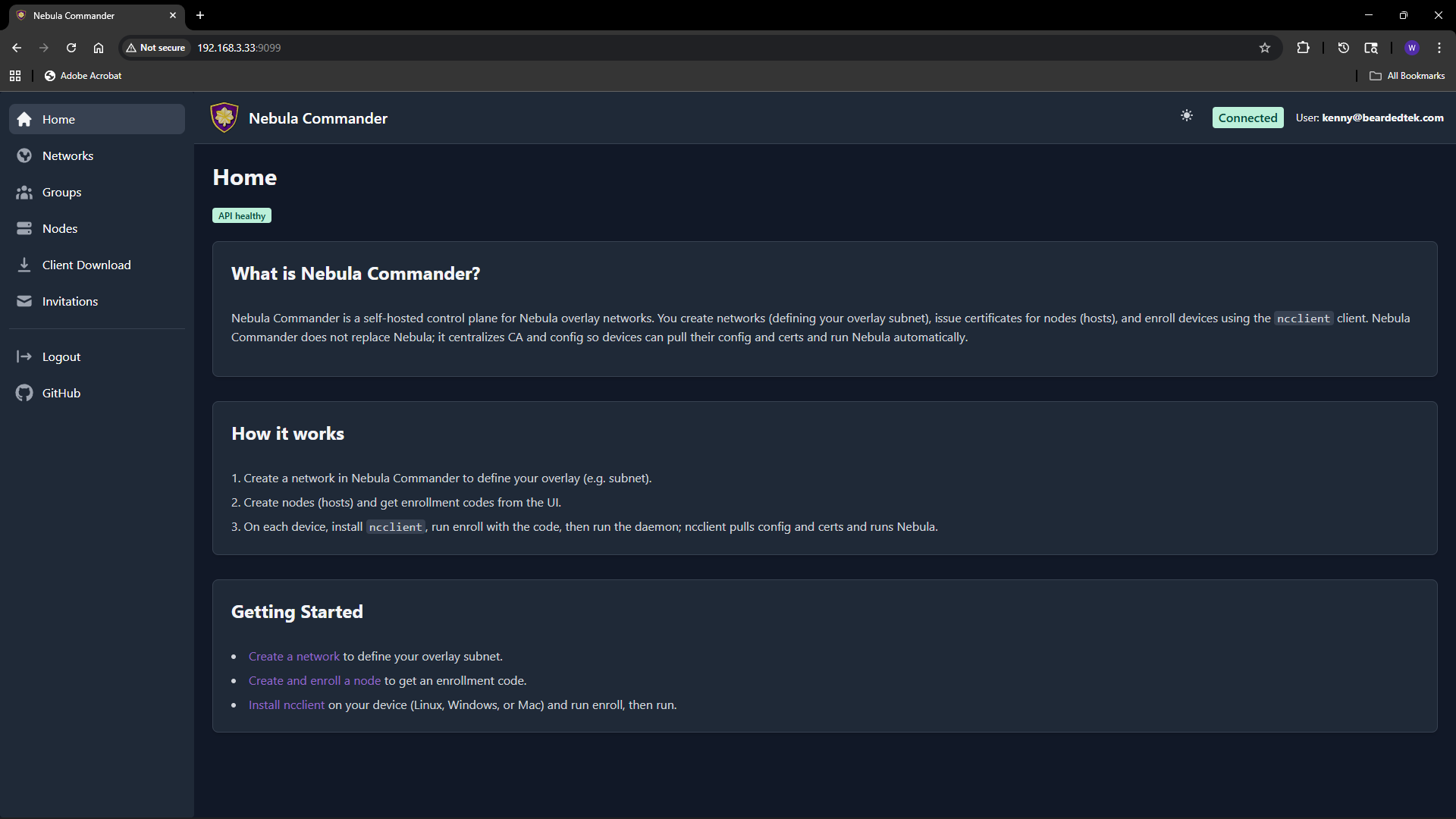
The Nebula Commander web UI is a React dashboard that talks to the backend API. You use it to manage networks, nodes, certificates, and users.
Logging in
- With OIDC – When OIDC is configured (OIDC), open the app URL and you are redirected to the provider (e.g. Keycloak). After login, you are sent back to the UI with a session.
- Without OIDC (development) – When the backend has
DEBUG=true and OIDC is not configured, the backend exposes a dev-token endpoint. The UI can log you in without a real IdP. Do not enable this in production.
Main flows
- Networks – Create and manage Nebula networks. As a network owner you control nodes, IP allocation, and firewall groups.
- Groups – Define security groups and inbound firewall rules per group.
- Nodes – Add nodes to networks, assign IPs, create or sign certificates, and generate enrollment codes for ncclient.
- Client Download – Download ncclient binaries (CLI and Windows tray) served from this server.
- Invitations – Invite users to networks with roles and permissions (when OIDC is enabled).
Certificates are created or signed from the Nodes page (Create or Sign flow). For Sign flow, the server does not have the private key; place host.key on the device (e.g. in the ncclient output directory).
Access control
Access is role-based: system-admin, network-owner, and user. Permissions include network-level and node-level access, node request workflow, auto-approval, and access grants. Critical actions (e.g. delete network or node) require reauthentication. Details are in the repository docker/README.
4.1 - Networks
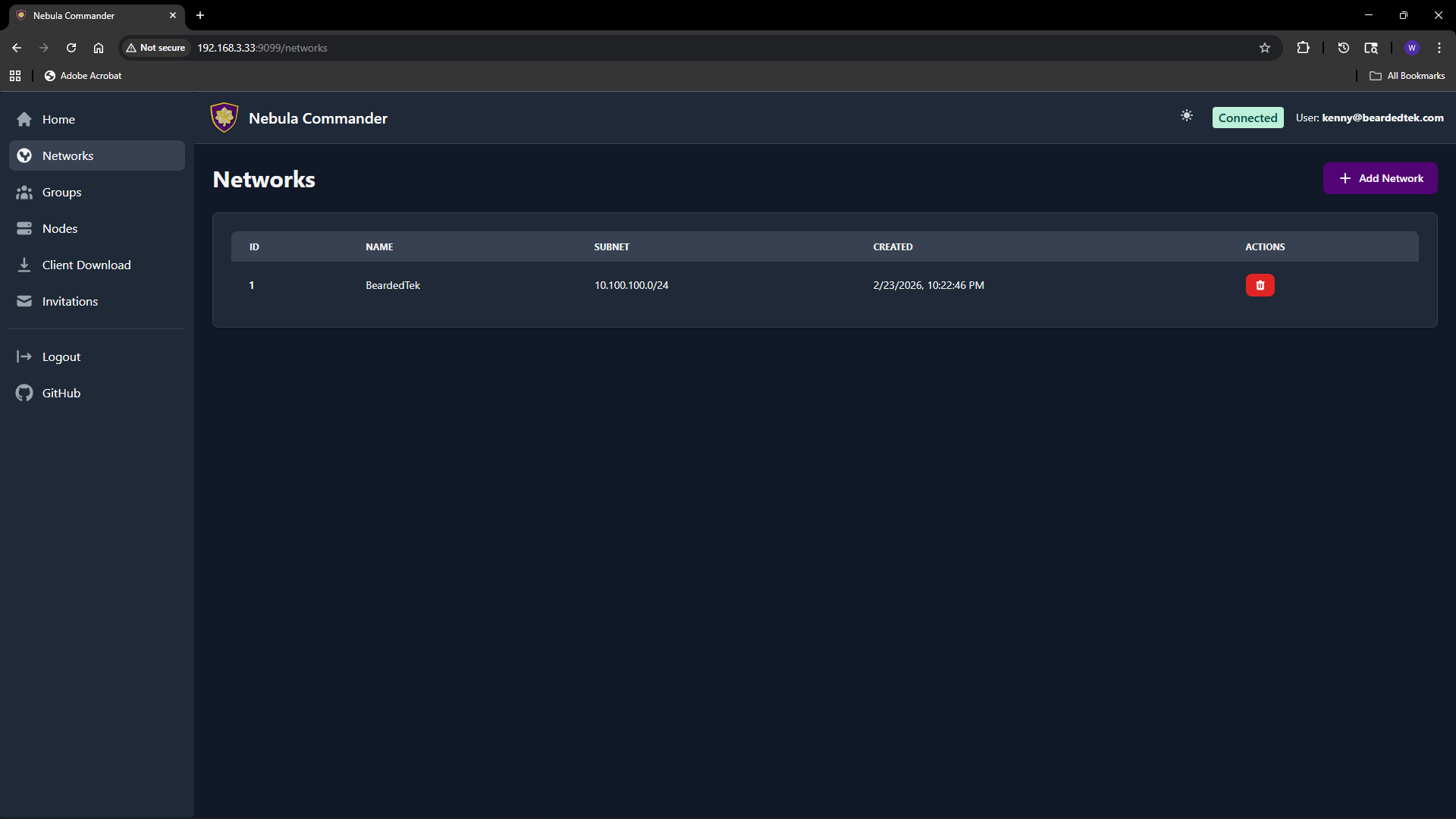
The Networks page lists all Nebula networks you can access and lets you create or delete networks. Each network has a name and a subnet (CIDR) used for IP allocation to nodes.
Adding a new network
- Open Networks in the sidebar.
- Click Add Network.
- Fill in the form:
- Network Name – A label for the network (e.g.
production, home). Must be unique and non-empty. - Subnet CIDR – The IPv4 range for this network. Example:
10.100.0.0/24. Node IPs are assigned from this range. Choose a range that does not overlap with your existing networks or LAN.
- Click Create (or submit). The new network appears in the table.
You can create multiple networks to separate environments (e.g. dev, staging, prod) or teams.
Listing and managing networks
The table shows for each network:
- Name – Network name.
- Subnet – CIDR (e.g.
10.100.0.0/24). - Actions – Links to manage nodes in that network, and optionally delete.
Clicking a network row or a “Nodes” link takes you to the Nodes page filtered to that network. From there you add nodes, assign IPs, and manage certificates.
Deleting a network
Deleting a network is a critical action. The UI requires you to reauthenticate before the delete is performed.
- On the Networks page, use the delete action for the network you want to remove.
- A modal opens asking you to type the network name to confirm.
- Type the exact network name and confirm. You are redirected to the OIDC provider (or dev login) to reauthenticate.
- After reauthentication, you are returned to the UI and the network is deleted.
Ensure no nodes or critical services depend on the network before deleting. Deletion removes the network and its node/certificate data from Nebula Commander.
4.2 - Groups
The Groups page lets you define Nebula security groups and their inbound firewall rules per network. Groups are used by nodes (each node has one or more groups). Firewall rules control which other groups can send traffic to this group and on what protocol and ports.
Selecting a network
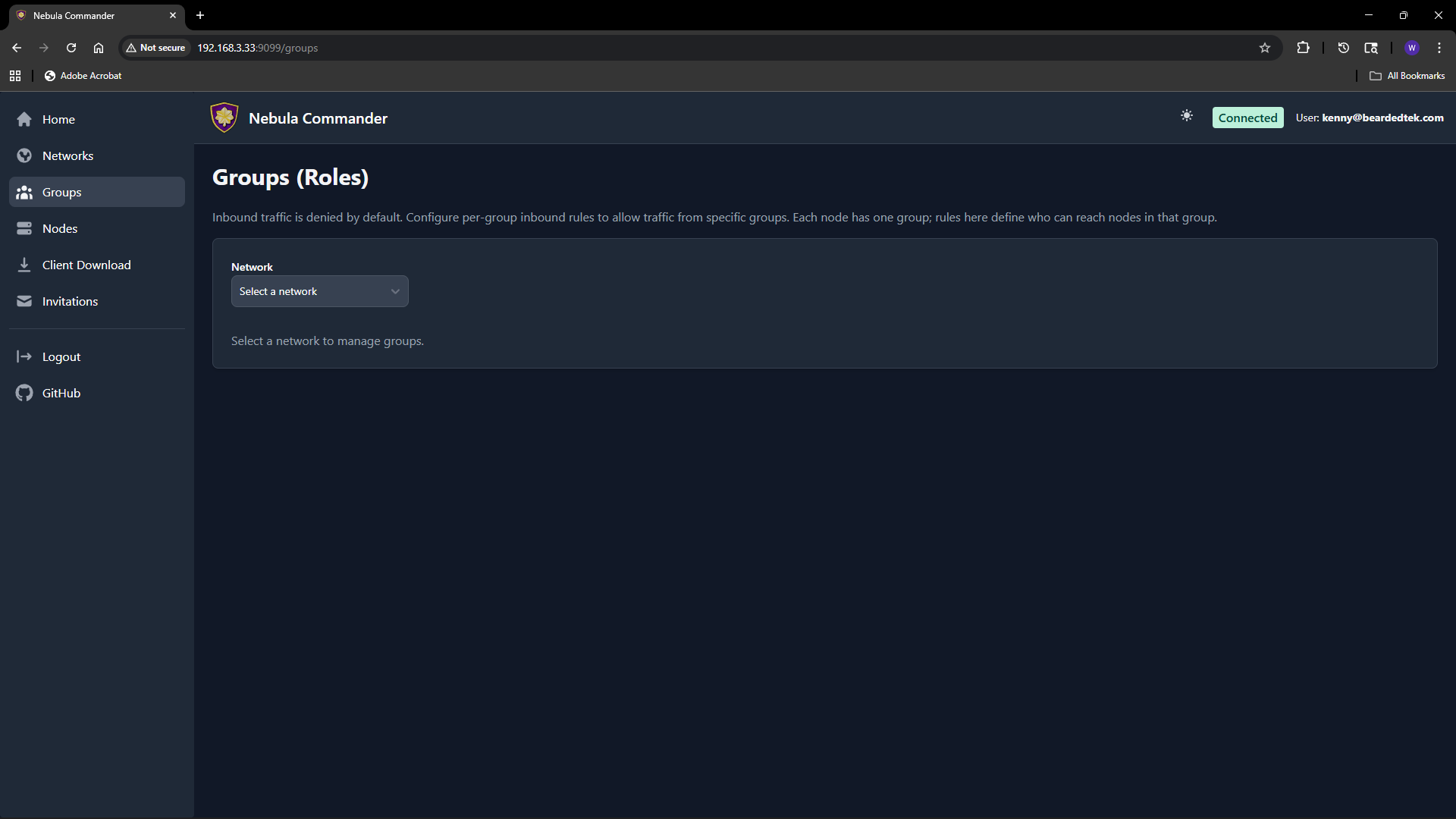
At the top of the Groups page, choose a network from the dropdown. Groups and rules are per network. Only networks you have access to appear in the list.
What groups are
In Nebula, a group is a tag (e.g. laptops, servers, admin) that you assign to nodes. The firewall then allows or denies traffic based on group membership. On this page you define the inbound rules for each group: which other groups can connect to this group, and on which protocol and port range.
Adding a group
- Select the network.
- In the “Add group” area, enter a new group name (e.g.
servers). Group names are case-sensitive and must be unique within the network. - Click add. The group appears in the list with an empty set of inbound rules. You can then add rules (see below).
Groups are created implicitly when you add the first rule or when you create a node and assign it a group. If the group does not exist yet, adding an inbound rule for it or assigning it to a node will create it.
Firewall rules per group
For each group you configure inbound rules: who can send traffic to this group.
| Field | Description |
|---|
| Allowed group | The name of the other group that is allowed to send traffic to this group. |
| Protocol | any, tcp, udp, or icmp. |
| Port range | Port or range (e.g. 80, 443, 8000-8010) or any for all ports. |
| Description | Optional note for the rule. |
Example: To allow the group laptops to reach the group servers on TCP ports 80 and 443, add an inbound rule on the servers group with allowed group laptops, protocol tcp, and port range 80,443 (or two rules if your UI uses one port per rule).
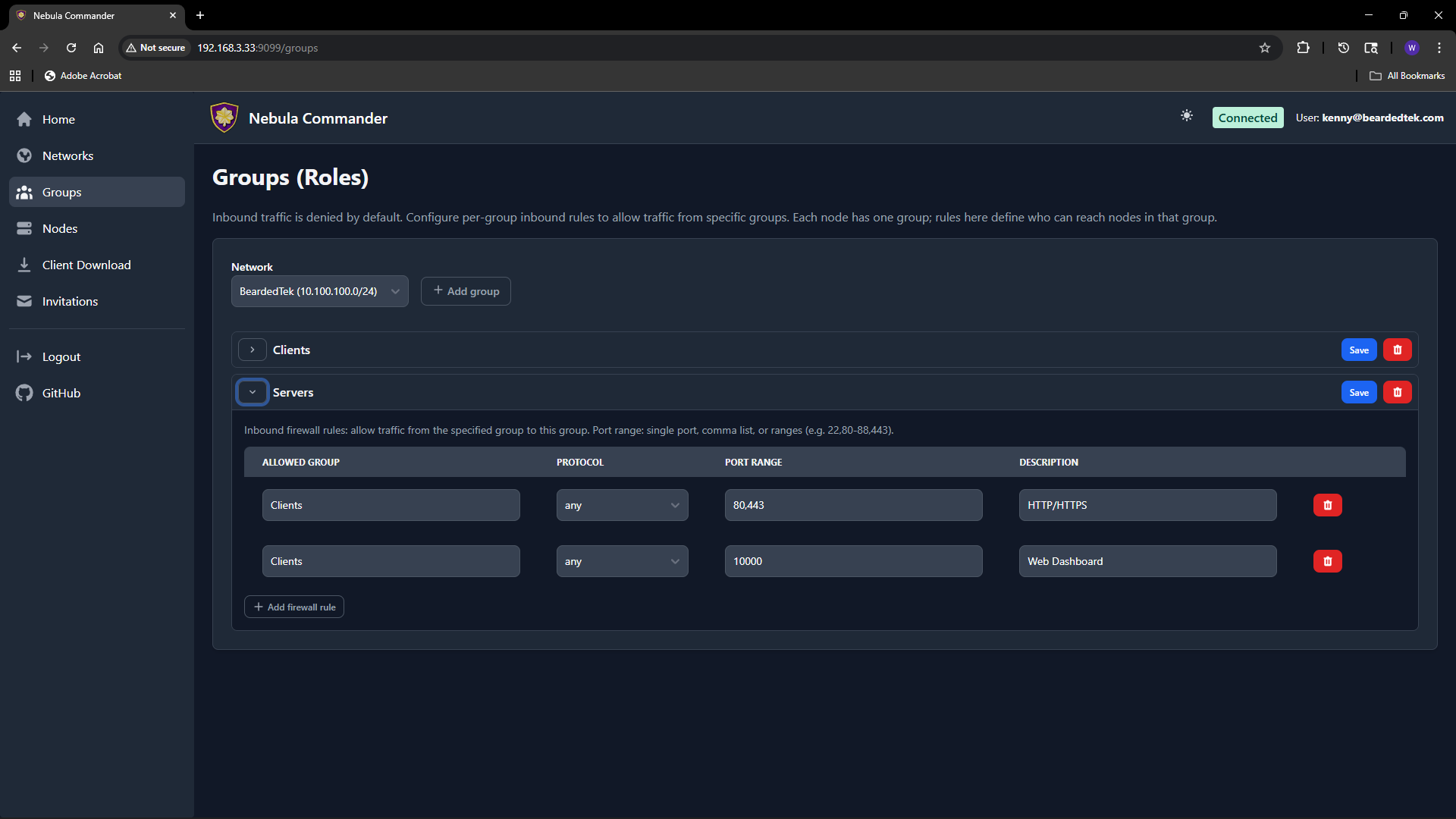
Rules are stored per group. After editing rules, click Save for that group. Changes apply when Nebula config is regenerated (e.g. when ncclient polls or you re-download config).
How to leverage groups
- Segment by role – Put nodes in groups like
laptops, servers, iot. Then allow only laptops and servers to reach iot on specific ports, and only servers to talk to each other on admin ports. - Least privilege – Only add inbound rules that are needed. Avoid
any/any unless intentional. - Node assignment – On the Nodes page, when you create or edit a node you set its group. That node is then subject to the inbound rules defined for that group on this page.
If a group has no inbound rules, no other groups can send traffic to it (default deny). Add rules to allow the desired traffic.
4.3 - Nodes
The Nodes page lists all nodes across networks (or filtered by one network). You create nodes, assign IPs and groups, create or sign certificates, generate enrollment codes for ncclient, and download config.

Creating a node
- Open Nodes and optionally filter by network.
- Use the Add node (or similar) action. You may need to pick a network first if not filtered.
- Enter a hostname (e.g.
laptop-alice, server-1). The hostname identifies the node and is used in certificates and config. - The server assigns an IP address from the network’s subnet, or you may be able to choose one if the UI allows.
- Set the node’s group (e.g.
laptops, servers). The group is used for firewall rules and must match a group defined for that network. - Submit. The node is created. Next you create or sign a certificate (see below).
Node options (when creating or editing)
When creating or editing a node, you can set:
| Option | Description |
|---|
| Group | Nebula security group(s) for this node. Used for firewall (see Groups). |
| Lighthouse | If enabled, this node acts as a Nebula lighthouse (others can punch through to it). |
| Relay | If enabled, this node can relay traffic for other nodes. |
| Public endpoint | Optional public address (e.g. 1.2.3.4:4242) so other nodes can reach this node. Used for lighthouse/relay. |
| Serve DNS | If the node is a lighthouse, enable to serve DNS for the Nebula network. |
| DNS host / port | Bind address and port for the built-in DNS server (e.g. 0.0.0.0, 53). |
| Interval (seconds) | Nebula’s lighthouse check interval. |
| Log level | panic, fatal, error, warning, info, debug. |
| Log format | json or text. |
| Punchy | Options for NAT punch-through (respond, delay, respond_delay). |
Not all options may be visible in the UI; the table covers the main ones from the API. Defaults are applied for any you leave unset.
Editing a node
Click the node row or an Edit action to open the node details.
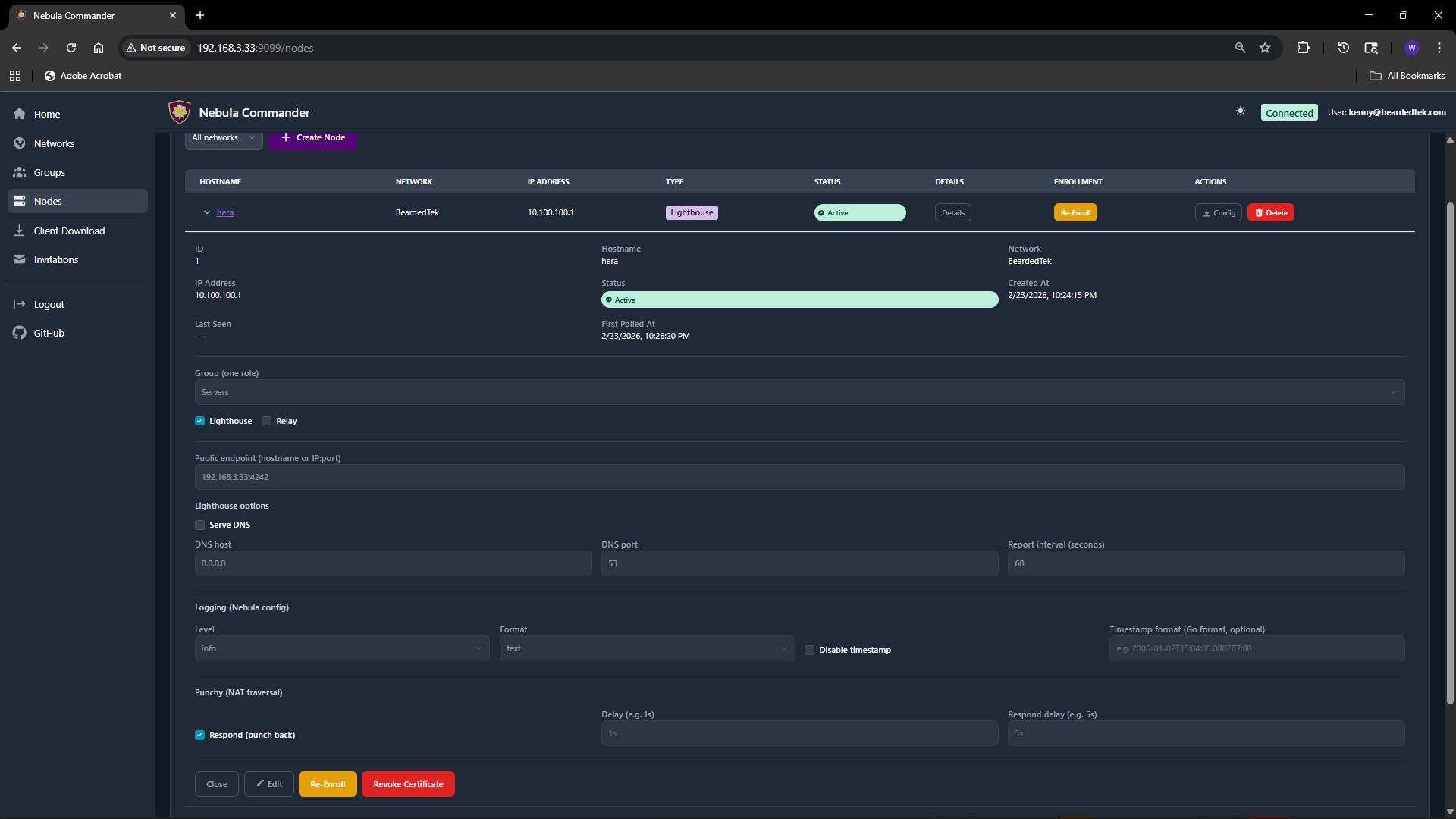 Change hostname, group, lighthouse/relay, public endpoint, DNS, logging, or punchy options as needed. Save. If you change the certificate (create/sign) or group, config for this node will change; devices using ncclient will pick up the change on the next poll.
Certificates: Create vs Sign
For each node you need a host certificate. Two flows:
- Create certificate – The server generates the private key and certificate. You can download a bundle that includes
host.key, host.crt, and ca.crt. Use this when the device does not already have a key (e.g. ncclient or you will copy the bundle to the device). - Sign certificate – You generate the private key on the device; the server only signs the cert. The server never has
host.key. After signing, download host.crt and ca.crt and place them on the device next to your existing host.key.
Choose Create for simplicity when the server can hold the key (or when you will deploy the bundle once). Choose Sign when you want the key to never leave the device.
Enrollment code (for ncclient)
After the node exists and has a certificate, you can generate an enrollment code for ncclient. On the Nodes page, open the node and click Enroll. Copy the one-time code. On the device run:
ncclient enroll --server https://YOUR_NEBULA_COMMANDER_URL --code XXXXXXXX
The device stores a token and can then use ncclient run to pull config and certs. See Client Download for binaries.
Download config
You can download the node’s Nebula config and certs (e.g. config.yaml, ca.crt, host.crt, and host.key if Create was used). Use this for manual (nebula) setup or backup.
Re-enroll and delete
- Re-enroll – If a device was enrolled but the token is lost or expired, you can generate a new enrollment code and run
ncclient enroll again on the device. - Delete node – Removes the node and its certificate from Nebula Commander. Critical actions may require reauthentication. Devices using that node will need a new node or re-enrollment if you recreate it.
4.4 - Client Download
The Client Download page (also reachable from the sidebar or at /client-download) lets users download ncclient binaries served directly from your Nebula Commander instance. No internet access to GitHub is required after deployment.
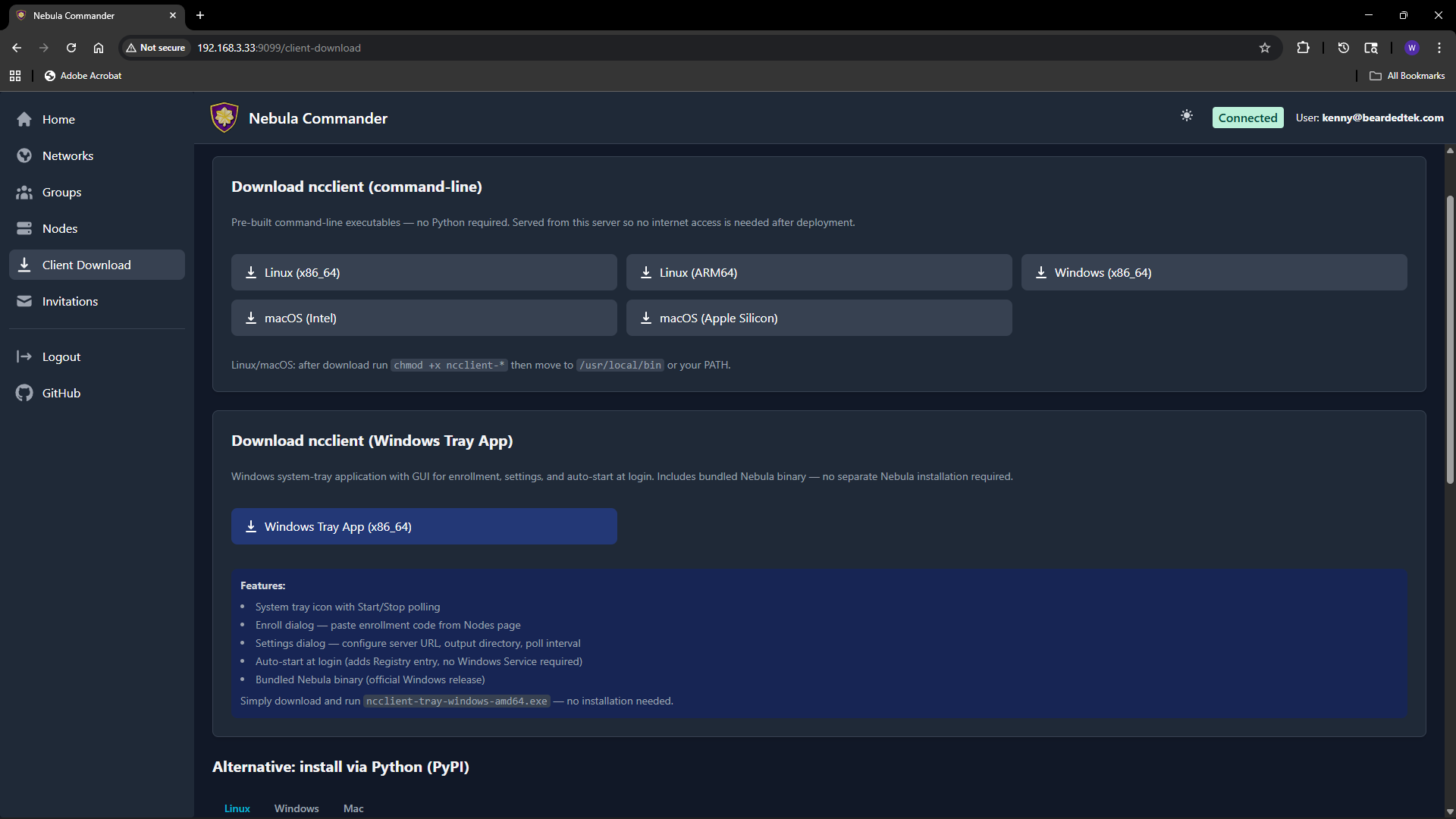
Purpose
Install and run ncclient on a device to enroll with Nebula Commander and pull config and certificates. The enrollment code is obtained from the Nodes page (Enroll button for the node). This page provides the CLI and, on Windows, the tray app.
CLI binaries (command-line ncclient)
Pre-built executables for:
| Platform | File name |
|---|
| Linux x86_64 | ncclient-linux-amd64 |
| Linux ARM64 | ncclient-linux-arm64 |
| Windows x86_64 | ncclient-windows-amd64.exe |
| macOS Intel | ncclient-macos-amd64 |
| macOS Apple Silicon | ncclient-macos-arm64 |
Downloads are served from /downloads/ (e.g. /downloads/ncclient-linux-amd64). These binaries are only available if the frontend was built with client binaries included (e.g. Docker image built with DOWNLOAD_BINARIES=1). If the page shows no downloads or 404, use ncclient installation from releases or pip instead.
After download on Linux or macOS, make the file executable and place it on your PATH:
chmod +x ncclient-linux-amd64   # or the file you downloaded
# Move to /usr/local/bin or add the directory to PATH
On Windows, add the directory containing ncclient-windows-amd64.exe to your PATH or run it by full path.
Windows Tray App
For Windows, the page may offer:
- ncclient-tray-windows-amd64.exe – Standalone tray application. Features: system tray icon, Start/Stop polling, Enroll dialog (paste code from Nodes page), Settings (server URL, output dir, poll interval), auto-start at login (Registry), and optionally bundled Nebula binary.
Download and run; no installer required. Alternatively, use the MSI installer (e.g. /downloads/NebulaCommander-windows-amd64.msi) to install both the CLI and the tray app and add them to PATH.
Getting the enrollment code
- In the Web UI, go to Nodes.
- Open the node for this device (or create one and create/sign a certificate).
- Click Enroll and copy the one-time code.
- On the device, run:
ncclient enroll --server https://YOUR_SERVER_URL --code XXXXXXXX.
Then run ncclient run --server https://YOUR_SERVER_URL to start polling for config and certs. See ncclient usage for full steps.
4.5 - Invitations
The Invitations page lets network owners (and system admins) invite users to a network with a chosen role and permissions. Invitations work when OIDC is configured; invited users sign in via the IdP and then gain access to the specified network.
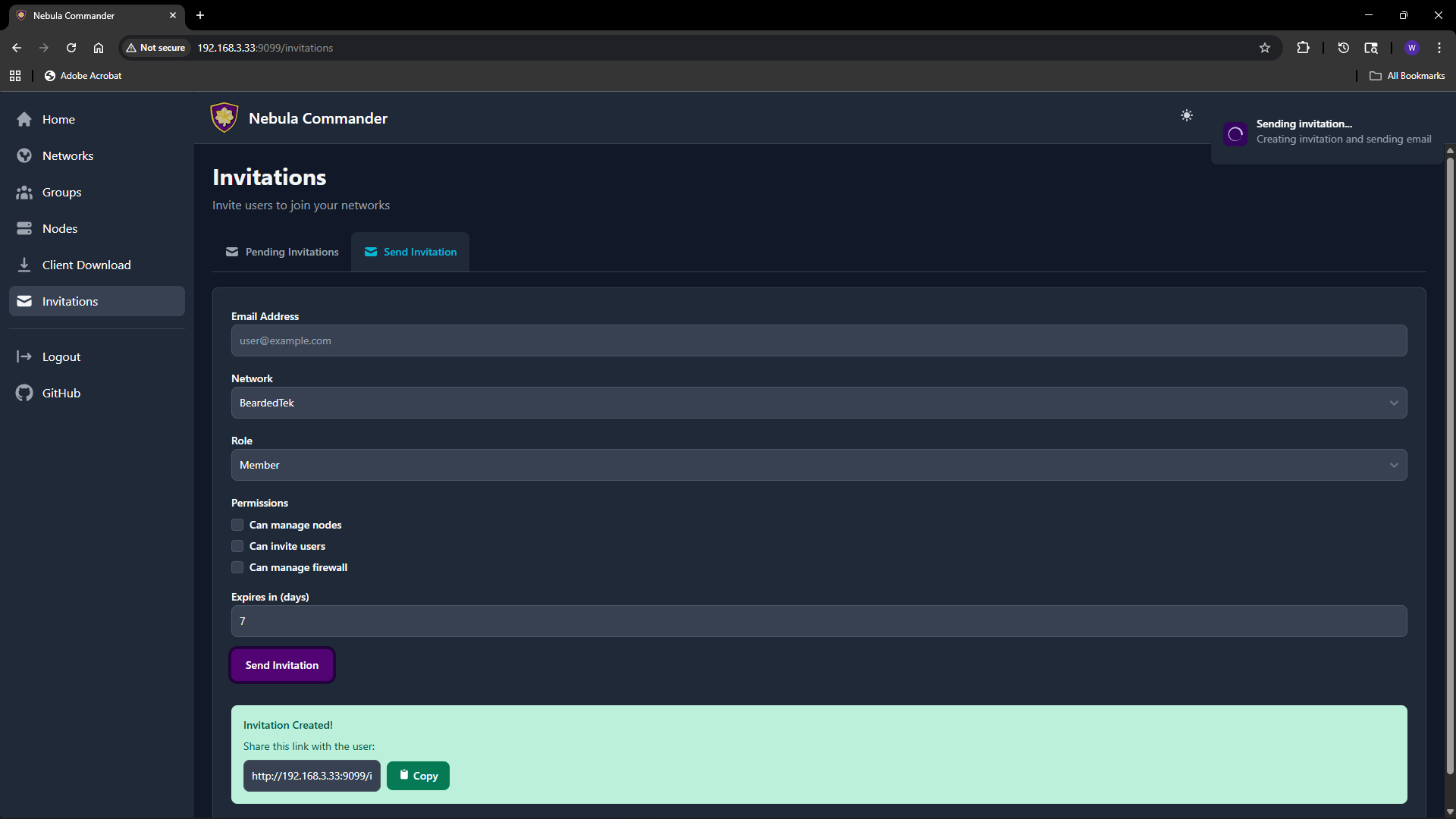
What invitations are
An invitation associates an email (or link) with a network, a role (e.g. member, admin), and optional permissions (can manage nodes, can invite users, can manage firewall). The invitee accepts by clicking a link or using a token; after acceptance they appear as a user with access to that network according to the role and permissions.
Creating an invitation
- Open Invitations in the sidebar.
- Use the “Invite user” or similar form.
- Fill in:
- Email – Invitee’s email (used for the invite link and, if SMTP is configured, to send the email).
- Network – The network to grant access to.
- Role – e.g.
member or admin. Affects default permissions. - Can manage nodes – Allow the user to add, edit, delete nodes in this network.
- Can invite users – Allow the user to send further invitations for this network.
- Can manage firewall – Allow the user to edit groups and firewall rules for this network.
- Expires in (days) – How long the invitation link is valid (e.g. 7 days).
- Submit. You can either send email (if SMTP is configured) or copy link to send manually.
The invitation appears in the list with status (e.g. pending, accepted, expired).
Accepting an invitation
The invitee opens the invitation link (from email or shared link). The link contains a token and typically looks like /invitations/accept/TOKEN. They are prompted to log in with OIDC if not already logged in. After accepting, they have access to the network according to the role and permissions set in the invitation.
Listing and revoking
The Invitations page lists all invitations you created (or all invitations in the system if you are a system admin).
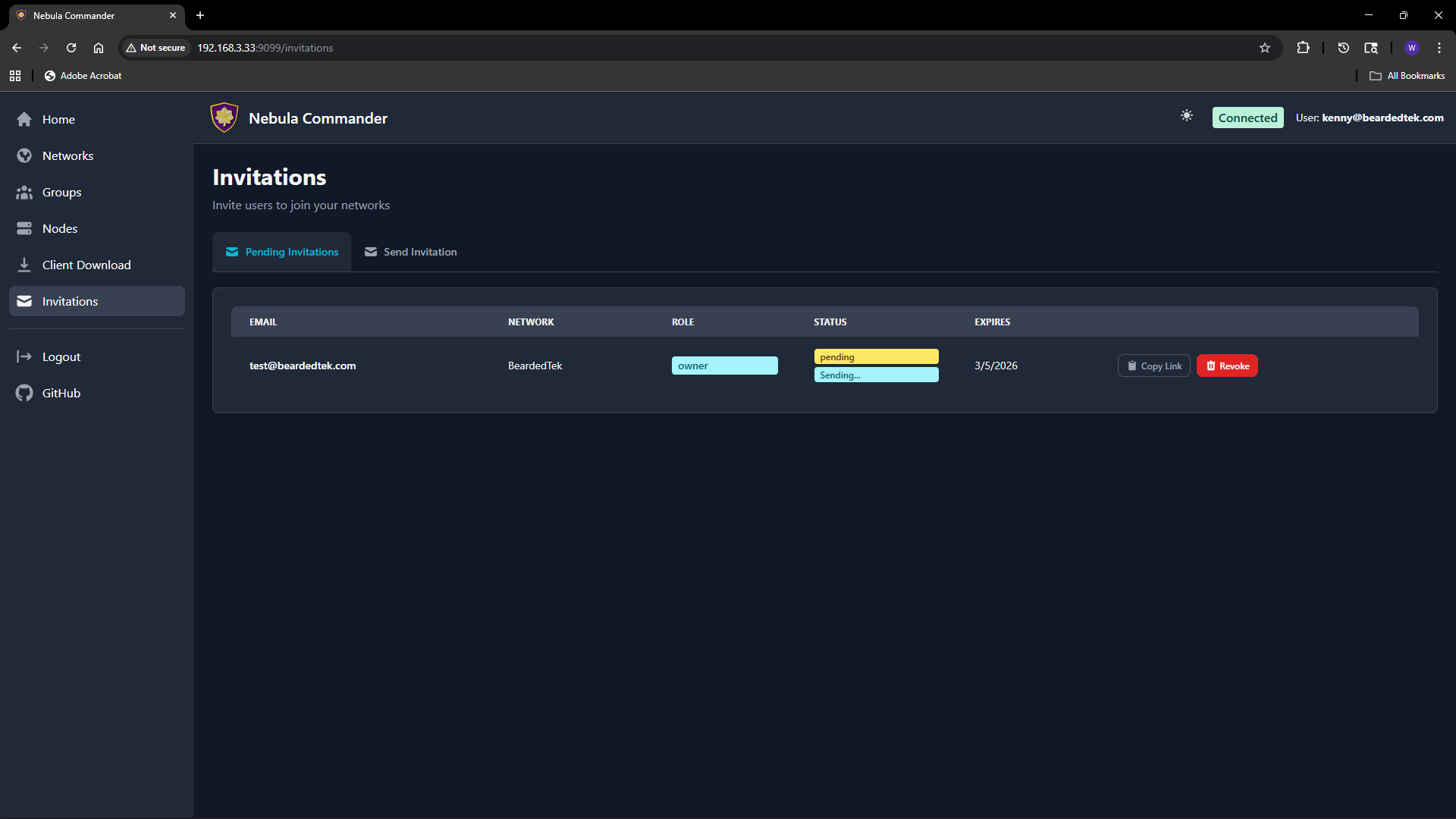 You can see status (pending, accepted, expired), email, network, role, and expiry. To revoke a pending invitation, use the revoke or delete action; the link will no longer work.
Email delivery
If the backend has SMTP configured, invitation emails are sent automatically when you create an invitation. If SMTP is not configured, use “Copy link” and share the URL manually. Email status (sent, failed) may be shown on the invitation row; check the Environment docs for SMTP options.
5 - Client Usage
After server installation and server configuration, you can use the Web UI or run Nebula on devices:
- ncclient – Device client (experimental): installation and usage (CLI, Windows Tray). ncclient will change often; see nebula for the stable approach.
- nebula – Preferred method until ncclient stabilizes: create networks and nodes in the UI, then deploy config and certs yourself and run Nebula manually.
All of these assume the backend is running and reachable at the URL you configure.
5.1 - ncclient
Experimental: ncclient is experimental and will change often. Using Nebula manually is the stable method for now.
ncclient is the Nebula Commander device client. It enrolls once with a code from the UI, then polls for config and certificates and can run or restart Nebula when config changes.
- Installation – Pip (PyPI), binaries (Web UI or GitHub Releases), or Windows Tray (MSI).
- Usage – Command line (enrollment, daemon, service) and Windows Tray.
Both the CLI and the Windows tray assume the Nebula Commander backend is running and reachable at the URL you configure.
5.1.1 - ncclient Installation
You can install ncclient in several ways: from PyPI with pip, as a standalone binary from the Web UI or GitHub Releases, or on Windows via the MSI installer (CLI and tray app).
Pip (PyPI)
From PyPI (recommended):
pip install nebula-commander
Requires Python 3.10+. This installs the ncclient command.
From source (repo clone):
cd nebula-commander
pip install -r client/requirements.txt
Then run as python -m client --server URL enroll --code XXX, or install the client in development mode to get the ncclient command:
cd client
pip install -e .
Binaries
From Web UI
When your Nebula Commander instance is deployed with client binaries included (for example the frontend image built with DOWNLOAD_BINARIES=1), the Web UI can serve them.
- Open your Nebula Commander URL in a browser and log in.
- Go to the downloads or client section (or open
https://YOUR_SERVER/downloads/ if your instance serves that path). - Download the binary for your platform:
- Linux x86_64:
ncclient-linux-amd64 - Linux ARM64:
ncclient-linux-arm64 - Windows x86_64:
ncclient-windows-amd64.exe - macOS Intel:
ncclient-macos-amd64 - macOS Apple Silicon:
ncclient-macos-arm64
- Place the file in a directory on your PATH (or add that directory to PATH). On Linux and macOS, make it executable:
chmod +x ncclient-linux-amd64 (or the file you downloaded).
If your instance does not serve binaries, use From releases or Pip (PyPI) instead.
From releases
Pre-built binaries are attached to GitHub Releases for each version.
- Open the releases page and choose a version (e.g. the latest).
- Download the file for your platform (same names as in From Web UI).
- Optionally verify with
SHA256SUMS.txt in the same release. - Place the binary in a directory on your PATH (or add that directory to PATH). On Linux and macOS, make it executable:
chmod +x ncclient-linux-amd64 (or the file you downloaded).
Windows Tray
On Windows you can install both the ncclient CLI and the optional tray app using the MSI installer.
What the installer includes:
- ncclient – CLI for enrollment and daemon (poll for config/certs, run or restart Nebula).
- ncclient-tray – System tray app: enroll, settings, start/stop polling, optional bundled Nebula, start at login.
Both are installed to %ProgramFiles%\Nebula Commander\. The installer can add that directory to PATH and create Start Menu shortcuts.
Getting the installer:
- Download
NebulaCommander-windows-amd64.msi from the GitHub Releases page for the version you want. - Use
SHA256SUMS.txt in the same release to verify the file.
After install:
- Enroll: in Nebula Commander go to Nodes, open the node, click Enroll, and copy the code. Then run:
ncclient enroll --server https://YOUR_SERVER_URL --code XXXXXXXX
- Run the client from the command line or use the tray app from the Start Menu (see Windows Tray in Usage).
For building the MSI yourself, see Development: Manual builds.
5.1.2 - ncclient Usage
After installing ncclient, enroll the device once, then run the daemon (or install the service on Linux).
Command Line
Enrollment
Enrollment is one-time per device. It stores a device token that ncclient uses to fetch config and certificates.
- In Nebula Commander, open Nodes, select the node for this device, and click Enroll.
- Copy the enrollment code.
- On the device, run:
ncclient enroll --server https://YOUR_NEBULA_COMMANDER_URL --code XXXXXXXX
The device token is saved to ~/.config/nebula-commander/token (or /etc/nebula-commander/token when run as root). On Windows, the token is stored under %USERPROFILE%\.config\nebula-commander\token.
Run (daemon)
After enrollment, run ncclient so it periodically pulls config and certificates and optionally runs or restarts Nebula:
ncclient run --server https://YOUR_NEBULA_COMMANDER_URL
Defaults: poll every 60 seconds, write files to /etc/nebula (or ~/.nebula on Windows), and start or restart Nebula from PATH when config changes.
Options
| Option | Description |
|---|
--output-dir DIR | Where to write config.yaml, ca.crt, host.crt (default: /etc/nebula on Linux/macOS, ~/.nebula on Windows) |
--interval N | Poll interval in seconds (default: 60) |
--token-file PATH | Path to device token file |
--nebula PATH | Path to the nebula binary if it is not on PATH |
--restart-service NAME | Instead of running nebula directly, restart this systemd service (e.g. nebula). Use only one of --nebula or --restart-service. |
Example with nebula in a non-standard location:
ncclient run --server https://nc.example.com --nebula /usr/local/bin/nebula
Example using systemd to run Nebula (ncclient only restarts the service):
ncclient run --server https://nc.example.com --restart-service nebula
Linux: Creating the Nebula TUN device requires root. Run ncclient as root, e.g. sudo ncclient run --server https://....
Certificates: If the cert was created via the server (Create certificate in the UI), the bundle includes host.key. If it was signed (Sign flow), the server does not have the key; put your host.key in the same directory as the generated certs (the output dir).
Install service
Linux (quick install)
On Linux you can install a systemd service with one command:
This checks for an existing token at /etc/nebula-commander/token. If missing, it prints the exact ncclient enroll ... command to run first. It then prompts for server URL and options (output dir, interval, nebula path, restart-service), writes /etc/default/ncclient and /etc/systemd/system/ncclient.service, and enables (and optionally starts) the service.
- Use
--no-start to enable without starting. - Use
--non-interactive with NEBULA_COMMANDER_SERVER (and optional env vars) set for scripting.
Run ncclient run under your init system (launchd on macOS, Task Scheduler or NSSM on Windows). Example configs are in the repo under examples/; see examples/README-startup.md for step-by-step setup on macOS and Windows.
Troubleshooting
- No TUN device / cannot ping Nebula IP – On Linux, run with
sudo. For Sign flow, ensure host.key is in the output directory. Check Nebula’s error output (e.g. “failed to get tun device”, “no such file”). - Nebula starts then exits – Often missing
host.key (Sign flow), wrong config path, or on Linux needing root. Check the Nebula lines ncclient prints.
macOS notes
Token: ~/.config/nebula-commander/token (or /etc/nebula-commander/token as root). Default output dir: /etc/nebula; for non-root use --output-dir ~/.nebula. Nebula: use PATH or --nebula /opt/homebrew/bin/nebula (Apple Silicon) or /usr/local/bin/nebula (Intel). Do not use --restart-service; use launchd for background runs.
Windows notes (CLI)
Token: %USERPROFILE%\.config\nebula-commander\token. Default output dir: %USERPROFILE%\.nebula. Use --nebula if nebula.exe is not on PATH. Do not use --restart-service. For a GUI and start at login, use the Windows Tray section below.
Windows Tray
The Windows tray app provides the same enroll-and-poll flow as the ncclient CLI but with a GUI: tray icon, Enroll and Settings dialogs, Start/Stop polling, optional bundled Nebula, and Start at login (Registry Run).
Usage
- Enroll – Open the tray menu and use Enroll. Enter the server URL and the one-time code from Nebula Commander (Nodes → Enroll for the node). The token is stored in the same location as the CLI (
%USERPROFILE%\.config\nebula-commander\token). - Settings – Configure server URL, output directory for config and certs, poll interval, and optional path to the Nebula binary. When the app is built with bundled Nebula, the default Nebula path points to the bundled
nebula.exe. - Start / Stop polling – Start polling to fetch config and certs periodically and optionally run Nebula. Stop to pause.
- Start at login – When enabled, the app is registered in the Windows Registry (
HKCU\...\Run) so it starts when you sign in. No Windows Service is installed; the tray runs as a normal app.
Settings are stored in %APPDATA%\nebula-commander\settings.json.
Run from source
From the nebula-commander repo root:
pip install -r client/windows/requirements.txt
pip install -e client/
python -m client.windows.tray
Or with pythonw to avoid a console window:
pythonw -m client.windows.tray
Build (PyInstaller)
To build a standalone ncclient-tray.exe (and optionally bundle the Nebula Windows binary):
cd client/windows
pip install -r requirements.txt pyinstaller
python build.py
Output is in client/windows/dist/ (e.g. ncclient-tray.exe). See client/windows/README.md and build.py for details.
The Windows Tray installer (MSI) includes both the CLI and the tray app.
5.2 - Running Nebula manually
This is the preferred method until ncclient stabilizes. You use Nebula Commander to create networks, nodes, and certificates, then run Nebula on devices yourself without ncclient. Config and certs are copied or downloaded from the UI (or API) and you start Nebula manually.
When to use this
- You prefer to deploy config and certs yourself (copy to the device, run
nebula -config ...). - You do not want to enroll devices or run the ncclient daemon.
- You are fine updating config and certs manually when the network or node changes (re-download from the UI or API and replace files, then restart Nebula).
With ncclient, the device enrolls once and ncclient polls for config and certs and can run or restart Nebula automatically. With manual setup, you handle file deployment and restarts yourself.
Steps
1. Create network and node in Nebula Commander
In the Web UI: create a network, add a node for this device, and create or sign a certificate for the node.
- Create certificate – The server generates the key and cert; you can download a bundle that includes
host.key, host.crt, ca.crt, and config. - Sign certificate – You generate the key on the device; the server signs the cert. You will need to place your own
host.key next to the downloaded certs.
2. Get config and certs onto the device
Download or copy from the UI (or use the API) the node’s config and certificate files. You typically need:
config.yaml (Nebula config for this node)ca.crt (CA certificate)host.crt (host certificate for this node)host.key (only if you used Create certificate; with Sign, you already have this on the device)
Where to get them depends on your Nebula Commander version: use the node’s detail or download actions in the UI, or the device/config API. Place the files in a directory on the device (e.g. /etc/nebula or ~/.nebula).
3. Install and run Nebula on the device
Install Nebula from slackhq/nebula (packages, binary release, or build from source). Then run:
nebula -config /path/to/config.yaml
Use the path to the config.yaml you deployed. Nebula will read ca.crt, host.crt, and host.key from the paths specified in the config (often the same directory as the config).
4. Run Nebula at startup (optional)
Use your platform’s init system so Nebula keeps running: systemd on Linux, launchd on macOS, or a Windows service/task. When you change config or certs (after re-downloading from Nebula Commander), replace the files and restart Nebula.
Summary
| ncclient | Manual (nebula) |
|---|
| Enrollment | One-time; device gets a token | None |
| Config/certs | Fetched automatically by ncclient | You copy or download and place them |
| Nebula process | ncclient can run or restart it | You run and restart Nebula yourself |
| Updates | ncclient polls and updates files | You re-download and replace files, then restart Nebula |
6 - Development
This section covers building Nebula Commander from source, using CI, and the backend API.
- Setup – Run the backend and frontend locally (venv, uvicorn, npm run dev).
- GitHub Actions – Workflows for ncclient binaries, releases, and Docker images.
- Manual Builds – Build ncclient, Windows tray, MSI, and Docker images locally.
- API – REST API base path, OpenAPI docs, and router summary.
6.1 - Development Setup
Run the backend and frontend locally for development.
Backend
From the nebula-commander repository root:
python -m venv .venv
source .venv/bin/activate   # or .venv\Scripts\activate on Windows
pip install -r backend/requirements.txt
export NEBULA_COMMANDER_DATABASE_URL="sqlite+aiosqlite:///./backend/db.sqlite"
export NEBULA_COMMANDER_CERT_STORE_PATH="./backend/certs"
export DEBUG=true
python -m uvicorn backend.main:app --reload --port 8081
Use a real JWT secret in production; for local dev, DEBUG=true enables the dev-token endpoint.
Frontend
In another terminal:
cd frontend && npm install && npm run dev
Open http://localhost:5173. When the backend is in debug mode, you can log in via the dev token (no OIDC required).
Configuration
Set at least:
NEBULA_COMMANDER_DATABASE_URL – SQLite path (e.g. sqlite+aiosqlite:///./backend/db.sqlite)NEBULA_COMMANDER_CERT_STORE_PATH – Directory for CA and host certsDEBUG=true – Enables dev token and hot reload
See Configuration: Environment for all options.
6.2 - GitHub Actions
Nebula Commander uses two GitHub Actions workflows: one to build ncclient binaries (and create releases), and one to build and push Docker images.
Build ncclient Binaries
Workflow file: .github/workflows/build-ncclient-binaries.yml
Triggers
- Version tags – Push a tag matching
v* (e.g. v0.1.5) to build all binaries and create a GitHub Release. This is the only trigger that produces a release; there is no trigger on push to main. - Pull requests – Runs when changes touch
client/binaries/**, client/windows/**, client/ncclient.py, installer/windows/**, or the workflow file itself. - Manual – Use “Run workflow” in the Actions tab (
workflow_dispatch).
| Platform | Artifact name |
|---|
| Linux x86_64 | ncclient-linux-amd64 |
| Linux ARM64 | ncclient-linux-arm64 |
| Windows x86_64 | ncclient-windows-amd64.exe |
| macOS Intel | ncclient-macos-amd64 |
| macOS ARM64 (Apple Silicon) | ncclient-macos-arm64 |
Windows ARM64 is not built (GitHub has no Windows ARM64 runners). Linux ARM64 is built in Docker with QEMU on the host runner.
Jobs and outputs
- build – Matrix job: builds the ncclient CLI for each platform. Uploads one artifact per platform.
- build-windows-tray – Builds the Windows tray app (
ncclient-tray.exe) with optional bundled Nebula. Depends on the CLI build; uploads ncclient-tray-windows-amd64.exe. - build-msi – Runs only on tag pushes. Downloads the Windows CLI and tray artifacts, copies them into
installer/windows/redist/, builds the MSI with WiX 5, and uploads NebulaCommander-windows-amd64.msi. - upload-release – Runs only on tag pushes. Downloads all artifacts (CLI, tray, MSI), flattens them, generates
SHA256SUMS.txt, and uploads everything to the GitHub Release for that tag. Release is not draft; files can be overwritten. - checksums – Generates checksums for the Actions UI; release gets checksums from the upload-release job.
- summary – Prints build status and notes that release binaries were uploaded when the run was tag-triggered.
Creating a release
- Bump version (e.g. in
client/pyproject.toml or as appropriate). - Tag and push:
git tag v0.1.5
git push origin v0.1.5
- The workflow builds all platforms, the tray app, and the MSI, then creates the release and attaches all binaries and SHA256SUMS.
Manual run
In GitHub: Actions → “Build ncclient Binaries” → “Run workflow”. Choose branch and run. Artifacts appear in the run; no release is created unless you ran from a tag.
Build Docker Images
Workflow file: .github/workflows/build-docker-images.yml
Triggers
- After ncclient workflow – Runs when the “Build ncclient Binaries” workflow completes. It runs only if that workflow succeeded. Version is taken from the commit that triggered the binaries workflow: if that commit has a tag
v*, that tag (without the v) is used; otherwise version is latest. - Manual – “Run workflow” in the Actions tab. Version is
latest unless the run is triggered by the binaries workflow.
Images built and pushed
All images are pushed to GitHub Container Registry (ghcr.io):
| Image | Platforms |
|---|
ghcr.io/nixrtr/nebula-commander-backend | linux/amd64, linux/arm64 |
ghcr.io/nixrtr/nebula-commander-frontend | linux/amd64, linux/arm64 |
ghcr.io/nixrtr/nebula-commander-keycloak | linux/amd64, linux/arm64 |
Each image is tagged with the version (e.g. 1.2.3) and latest. Build uses Docker Buildx, layer caching (GitHub Actions cache), and the Dockerfiles under docker/. The frontend image is built with DOWNLOAD_BINARIES=1 so it can serve ncclient binaries from the release.
Summary job
A final job prints the version and the full image names with that tag.
Testing workflows locally (act)
You can run the workflows locally with act. Only Linux jobs run in Docker; Windows and macOS jobs do not use real Windows/macOS runners in act. See the repository .github/README.md for setup, usage, and how to simulate a tag push. Release upload and secrets still require GitHub when running with act.
6.3 - Manual Builds
You can build all ncclient binaries, the Windows tray app, the Windows MSI, and the Docker images locally without using GitHub Actions.
ncclient CLI (standalone binary)
The CLI is built with PyInstaller from client/binaries/. Python 3.11 is used in CI.
From the repository root:
pip install -r client/binaries/requirements.txt
pip install -r client/requirements.txt
cd client/binaries
python build.py
Output: client/binaries/dist/ncclient (or ncclient.exe on Windows). Use python build.py --clean to remove build artifacts; python build.py --test to build and run basic tests.
Linux ARM64
CI builds Linux ARM64 in a Docker container because the host runner is x86_64. Locally you can do the same:
docker run --rm --platform linux/arm64 \
  -v "$(pwd):/work" -w /work/client/binaries \
  python:3.11-slim \
  bash -c "
    apt-get update && apt-get install -y binutils &&
    pip install --upgrade pip &&
    pip install -r requirements.txt &&
    pip install -r ../requirements.txt &&
    python build.py
  "
The executable will be in client/binaries/dist/ncclient (arm64). Run this from the repo root so $(pwd) mounts the full tree.
Windows ARM64
On a Windows ARM64 machine (or with an ARM64 Python), install dependencies and run python build.py in client/binaries. To force PyInstaller to target ARM64 from an x64 host, set PYINSTALLER_TARGET_ARCH=arm64 in the environment when running build.py (CI does this for the Windows ARM64 matrix; GitHub does not provide Windows ARM64 runners, so this is for local use only).
Windows tray app
From the repository root:
pip install -r client/requirements.txt
pip install -r client/windows/requirements.txt
pip install pyinstaller
cd client/windows
python build.py
Output: client/windows/dist/ncclient-tray.exe. The build can optionally bundle the Nebula Windows binary; see client/windows/README.md and build.py for details.
Windows MSI
The MSI installs the ncclient CLI and the tray app. You need both executables and WiX 5.
Get the two executables – Build as above or download from a release. Copy them into installer/windows/redist/:
redist/ncclient.exe (from client/binaries/dist/ncclient.exe)redist/ncclient-tray.exe (from client/windows/dist/ncclient-tray.exe)
Install WiX 5 – e.g. dotnet tool install --global wix --version 5.0.2. Add the Util extension once:
wix extension add -g WixToolset.Util.wixext/5.0.0
Build the MSI – From installer/windows/:
wix build Product.wxs -ext WixToolset.Util.wixext -o NebulaCommander-windows-amd64.msi -d Version=0.1.12 -arch x64
Replace 0.1.12 with the version you are building.
Output: NebulaCommander-windows-amd64.msi.
Docker
Backend and frontend (compose)
From the repository root:
cd docker
docker compose build
This builds the backend and frontend images with default build-args. No Keycloak image is built by default; use the Keycloak Dockerfile separately if needed.
Backend image (docker build)
From the repository root:
docker build -f docker/backend/Dockerfile -t nebula-commander-backend:local .
Optional build-args: VERSION (default latest), NEBULA_VERSION (default 1.8.2).
Frontend image (docker build)
From the repository root:
docker build -f docker/frontend/Dockerfile -t nebula-commander-frontend:local .
Build-args:
- VERSION – Version tag used when downloading ncclient binaries (default
latest). - DOWNLOAD_BINARIES – Set to
1 to download ncclient binaries from GitHub releases (by version) into the image; set to 0 (default) for local builds that do not need bundled binaries.
Example with version and binaries:
docker build -f docker/frontend/Dockerfile \
  --build-arg VERSION=0.1.12 \
  --build-arg DOWNLOAD_BINARIES=1 \
  -t nebula-commander-frontend:0.1.12 .
Keycloak image
From the repository root:
docker build -f docker/keycloak/Dockerfile -t nebula-commander-keycloak:local .
No required build-args. For the nebula login background, ensure nebula-bg.webp exists under docker/keycloak-theme/nebula/login/resources/img/ (or copy from frontend/public/nebula-bg.webp) before building.
Multi-architecture (Buildx)
To build for linux/amd64 and linux/arm64 and push (e.g. to GHCR):
docker buildx build --platform linux/amd64,linux/arm64 \
  -f docker/backend/Dockerfile \
  -t ghcr.io/nixrtr/nebula-commander-backend:latest \
  --build-arg VERSION=latest \
  --push .
Use the same pattern for the frontend (with VERSION and DOWNLOAD_BINARIES as needed) and keycloak Dockerfiles.
6.4 - API
The Nebula Commander backend exposes a REST API under the base path /api. All routes are prefixed with /api. Most endpoints require a valid JWT in the Authorization: Bearer <token> header unless noted otherwise.
OpenAPI docs
When the backend is running in debug mode, interactive documentation is available at:
- Swagger UI – /api/docs
- ReDoc – /api/redoc
For full request/response schemas and parameters, use the interactive docs.
Health and root
| Method | Path | Auth | Description |
|---|
GET | /api | No | Root response: name, version, status. |
GET | /api/health | No | Health check. Returns {"status": "healthy"}. |
Auth (/api/auth)
Authentication and session management. OIDC (e.g. Keycloak) is used when configured; otherwise a dev token is available in debug mode.
| Method | Path | Auth | Description |
|---|
GET | /api/auth/dev-token | No | Development only. When DEBUG=true or OIDC is not configured, returns a JWT (token, expires_in). Grants full admin access. Returns 404 in production when OIDC is configured. |
GET | /api/auth/me | Optional | Current user info. Returns {"authenticated": false} or {"authenticated": true, "sub", "email", "role", "system_role"}. |
GET | /api/auth/login | No | Redirects to the OIDC provider for login. Returns 501 if OIDC is not configured. |
GET | /api/auth/oidc-status | No | OIDC provider readiness. Returns {"status": "ok"}, {"status": "disabled"}, or 503 if provider is unavailable. |
GET | /api/auth/callback | No | OAuth callback. Exchanges authorization code for tokens and redirects to frontend with JWT in query (/auth/callback?token=...). |
GET | /api/auth/logout | No | Logs out and redirects to OIDC logout (or frontend if OIDC not configured). |
POST | /api/auth/reauth/challenge | Yes | Creates a reauthentication challenge for critical operations. Body: none. Response: challenge, reauth_url. Used before destructive actions (e.g. delete network). |
GET | /api/auth/reauth/callback | No | Reauth OAuth callback. Validates state (challenge) and redirects to frontend with reauth token. |
Heartbeat (/api/nodes)
Used by ncclient (or other clients) to report node liveness.
| Method | Path | Auth | Description |
|---|
POST | /api/nodes/{node_id}/heartbeat | Yes (JWT) | Updates last_seen and sets node status to active. Call periodically from enrolled nodes. Response: {"ok": true, "last_seen": "<iso>"}. |
Networks (/api/networks)
Create and manage Nebula networks. Permissions are enforced per network (owner, member, and capability flags).
| Method | Path | Auth | Description |
|---|
GET | /api/networks | Yes | List networks the user can access. Includes role, can_manage_nodes, can_invite_users, can_manage_firewall per network. System admins see all networks (with limited data). |
POST | /api/networks | Yes | Create a network. Body: name, subnet_cidr. Creator becomes owner. Returns full network object. 409 if name exists. |
GET | /api/networks/{network_id} | Yes | Get a single network. System admins need an access grant to see CA path. |
PATCH | /api/networks/{network_id} | Yes | Update network (owner only). Body: optional fields (currently no network-level firewall; use group firewall). |
DELETE | /api/networks/{network_id} | Yes | Delete network (owner only; system admins can delete any). Body: reauth_token, confirmation (must match network name). 204 on success. |
GET | /api/networks/{network_id}/group-firewall | Yes | List per-group firewall configs. Requires can_manage_firewall. Response: list of {group_name, inbound_rules}. |
PUT | /api/networks/{network_id}/group-firewall/{group_name} | Yes | Create or update inbound firewall rules for a group. Body: inbound_rules (each: allowed_group, protocol (any/tcp/udp/icmp), port_range, optional description). |
DELETE | /api/networks/{network_id}/group-firewall/{group_name} | Yes | Remove group firewall config for that group. 204 on success. |
GET | /api/networks/{network_id}/check-ip | Yes | Check if an IP is available in the network. Query: ip. Response: {"available": true or false}. 400 if IP not in subnet. |
Nodes (/api/nodes)
Manage Nebula nodes (hosts) within networks. Used by the Web UI and for manual cert/config workflows.
| Method | Path | Auth | Description |
|---|
GET | /api/nodes | Yes | List nodes. Query: optional network_id. Returns list of node objects (id, network_id, hostname, ip_address, groups, is_lighthouse, is_relay, status, etc.). |
GET | /api/nodes/{node_id} | Yes | Get a single node by ID. |
PATCH | /api/nodes/{node_id} | Yes | Update node. Body (all optional): group, is_lighthouse, is_relay, public_endpoint, lighthouse_options, logging_options, punchy_options. 409 if removing the only lighthouse. Response: {"ok": true}. |
DELETE | /api/nodes/{node_id} | Yes | Delete node: release IP, remove host cert/key files, delete related records. 204. 409 if node is the only lighthouse. |
GET | /api/nodes/{node_id}/config | Yes | Generate and return Nebula YAML config for the node (with inline PKI when key is stored). Response: application/yaml attachment. |
GET | /api/nodes/{node_id}/certs | Yes | Return a ZIP with ca.crt, host.crt, optional host.key, and README.txt. |
POST | /api/nodes/{node_id}/revoke-certificate | Yes | Revoke the node’s certificate; node record is kept. Releases IP and removes cert/key files. Node can re-enroll later. Response: {"ok": true}. |
POST | /api/nodes/{node_id}/re-enroll | Yes | Revoke existing cert (if any) and issue a new one for this node. Frontend typically creates an enrollment code afterward. Response: {"ok": true, "node_id": id}. |
Certificates (/api/certificates)
Create or sign host certificates. Used when creating nodes from the Web UI or when using client-generated keys (e.g. betterkeys).
| Method | Path | Auth | Description |
|---|
POST | /api/certificates/sign | Yes | Sign a host certificate (client sends public key). Body: network_id, name, public_key, optional group, suggested_ip, duration_days. Response: ip_address, certificate (PEM), optional ca_certificate. Creates or updates node record. |
POST | /api/certificates/create | Yes | Create a host certificate (server generates keypair). Body: network_id, name, optional group, suggested_ip, duration_days, is_lighthouse, is_relay, public_endpoint, lighthouse_options, punchy_options. Response: node_id, hostname, ip_address, certificate, private_key, optional ca_certificate. First node in network must be lighthouse. 409 if node name exists or suggested IP is taken. |
GET | /api/certificates | Yes | List issued certificates. Query: optional network_id. Response: list of {id, node_id, node_name, network_id, network_name, ip_address, issued_at, expires_at, revoked_at}. |
Device (/api/device)
Used by ncclient for enrollment and for fetching config/certs with a device token. Flow: create enrollment code (admin) → device redeems code at POST /enroll → device uses returned token for GET /config and GET /certs.
| Method | Path | Auth | Description |
|---|
POST | /api/device/enrollment-codes | Yes (JWT) | Create a one-time enrollment code for a node. Body: node_id, expires_in_hours (default 24). Response: code, expires_at, node_id, hostname. Node must already have a certificate. |
POST | /api/device/enroll | No | Public. Redeem a one-time code. Body: code. Response: device_token, node_id, hostname. Rate limited (e.g. 5 attempts per 15 min per IP). 404 if code invalid/expired, 400 if already used or expired. |
GET | /api/device/config | Device token | Return Nebula YAML config for the device (inline PKI). Header: Authorization: Bearer <device_token>. Optional If-None-Match: <etag> for 304 when unchanged. |
GET | /api/device/certs | Device token | Return ZIP with ca.crt, host.crt, optional host.key, README.txt for the device. |
Users (/api/users)
System admin user management. All endpoints require system-admin role.
| Method | Path | Auth | Description |
|---|
GET | /api/users | System admin | List all users. Response: list of {id, oidc_sub, email, system_role, created_at, network_count}. |
GET | /api/users/{user_id} | System admin | Get user details including networks (list of network id, name, role, permission flags). |
PATCH | /api/users/{user_id} | System admin | Update user. Body: optional system_role (system-admin or user). |
DELETE | /api/users/{user_id} | System admin | Delete user; removes all their network permissions. 204. |
Node requests (/api/node-requests)
Request/approve workflow for node creation (e.g. when auto-approve is off).
| Method | Path | Auth | Description |
|---|
POST | /api/node-requests | Yes | Create a node request. Body: network_id, hostname, optional groups, is_lighthouse, is_relay. If user has manage_nodes or network has auto_approve_nodes, request is approved immediately and node is created. Response includes status, created_node_id if approved. |
GET | /api/node-requests | Yes | List node requests. Query: optional network_id, status. Users see own requests; network owners/admins see requests for their networks; system admins see all. |
POST | /api/node-requests/{request_id}/approve | Yes | Approve a pending request; creates the node and allocates IP. Body: empty object. Requires manage_nodes on the network. |
POST | /api/node-requests/{request_id}/reject | Yes | Reject a pending request. Body: reason. Requires manage_nodes on the network. |
Access grants (/api/access-grants)
Temporary access for system admins to a specific network or node (e.g. for support). Only network owners can create grants.
| Method | Path | Auth | Description |
|---|
POST | /api/access-grants | Yes | Create an access grant. Body: admin_user_id, resource_type (network or node), resource_id, duration_hours, reason. Target user must be system-admin. |
GET | /api/access-grants | Yes | List grants. Query: active_only (default true). Network owners see grants they created; system admins see grants for them. |
DELETE | /api/access-grants/{grant_id} | Yes | Revoke a grant. Only the user who created the grant can revoke. 204. |
Invitations (/api/invitations)
Invite users to join a network by email. Requires can_invite_users (or owner) on the network.
| Method | Path | Auth | Description |
|---|
POST | /api/invitations | Yes | Create invitation. Body: email, network_id, role (owner/member), can_manage_nodes, can_invite_users, can_manage_firewall, expires_in_days (default 7). Sends email if SMTP configured. 400 if user already member or pending invitation exists. |
GET | /api/invitations | Yes | List invitations. Query: optional network_id, status_filter. Owners see invitations for their networks; system admins see all. |
GET | /api/invitations/public/{token} | No | Public. Get invitation details by token (no auth). Returns network name, inviter, role, permissions, status, expires_at. 410 if expired. |
POST | /api/invitations/{token}/accept | Yes | Accept invitation; creates NetworkPermission for current user. Must be logged in. Email should match invitation (optional check). |
POST | /api/invitations/{invitation_id}/resend | Yes | Resend invitation email. Pending only. |
DELETE | /api/invitations/{invitation_id} | Yes | Revoke invitation (inviter or network owner). Sets status to revoked. 204. |
Network permissions (/api/networks)
Manage which users have access to a network and their roles/permissions. Owner-only for list/update/remove; can_invite_users for add.
| Method | Path | Auth | Description |
|---|
GET | /api/networks/{network_id}/users | Yes | List users with access to the network. Owner or system admin. Response: list of user_id, email, role, can_manage_, invited_by_, created_at. |
POST | /api/networks/{network_id}/users | Yes | Add user to network. Body: user_id, role (owner/member), can_manage_nodes, can_invite_users, can_manage_firewall. Requires can_invite_users. 400 if already member. |
PATCH | /api/networks/{network_id}/users/{target_user_id} | Yes | Update user’s permissions. Body: optional role, can_manage_nodes, can_invite_users, can_manage_firewall. Owner only. Cannot demote the last owner. |
DELETE | /api/networks/{network_id}/users/{target_user_id} | Yes | Remove user from network. Owner only. Cannot remove the last owner. 204. |
Audit (/api/audit)
Read-only audit log. System admins only.
| Method | Path | Auth | Description |
|---|
GET | /api/audit | System admin | List audit log entries. Query: limit (default 50, max 200), offset, optional action, resource_type, from_date, to_date. Ordered by occurred_at descending. Response: list of id, occurred_at, action, actor_*, resource_type, resource_id, result, details, client_ip. |
Summary
/api — Root, health/api/auth — Login, callback, dev-token, logout, reauth/api/nodes — Heartbeat, and full node CRUD + config/certs/revoke/re-enroll/api/networks — Networks CRUD, group firewall, check-ip, and network users (permissions)/api/certificates — Sign host cert (client key), create host cert (server key), list certs/api/device — Enrollment codes, enroll (public), config and certs (device token)/api/users — User list/detail/update/delete (system admin)/api/node-requests — Create/list/approve/reject node requests/api/access-grants — Create/list/revoke temporary admin access/api/invitations — Create/list/accept/resend/revoke invitations/api/audit — List audit log (system admin)