Web UI Usage
The Nebula Commander web UI is a React dashboard that talks to the backend API. You use it to manage networks, nodes, certificates, and users.
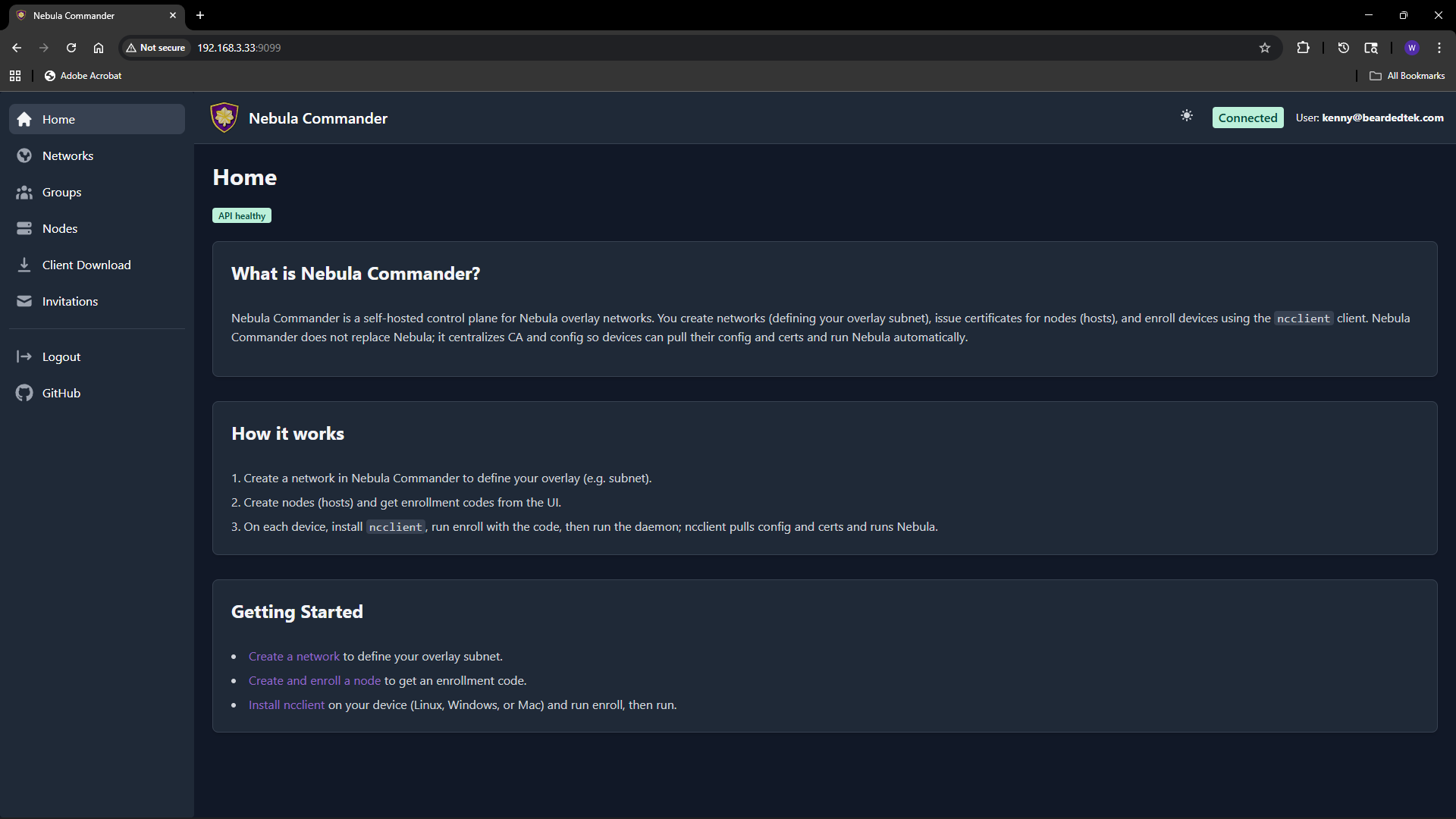
Logging in
- With OIDC – When OIDC is configured (OIDC), open the app URL and you are redirected to the provider (e.g. Keycloak). After login, you are sent back to the UI with a session.
- Without OIDC (development) – When the backend has
DEBUG=true and OIDC is not configured, the backend exposes a dev-token endpoint. The UI can log you in without a real IdP. Do not enable this in production.
Main flows
- Networks – Create and manage Nebula networks. As a network owner you control nodes, IP allocation, and firewall groups.
- Groups – Define security groups and inbound firewall rules per group.
- Nodes – Add nodes to networks, assign IPs, create or sign certificates, and generate enrollment codes for ncclient.
- Client Download – Download ncclient binaries (CLI and Windows tray) served from this server.
- Invitations – Invite users to networks with roles and permissions (when OIDC is enabled).
Certificates are created or signed from the Nodes page (Create or Sign flow). For Sign flow, the server does not have the private key; place host.key on the device (e.g. in the ncclient output directory).
Access control
Access is role-based: system-admin, network-owner, and user. Permissions include network-level and node-level access, node request workflow, auto-approval, and access grants. Critical actions (e.g. delete network or node) require reauthentication. Details are in the repository docker/README.
1 - Networks
The Networks page lists all Nebula networks you can access and lets you create or delete networks. Each network has a name and a subnet (CIDR) used for IP allocation to nodes.
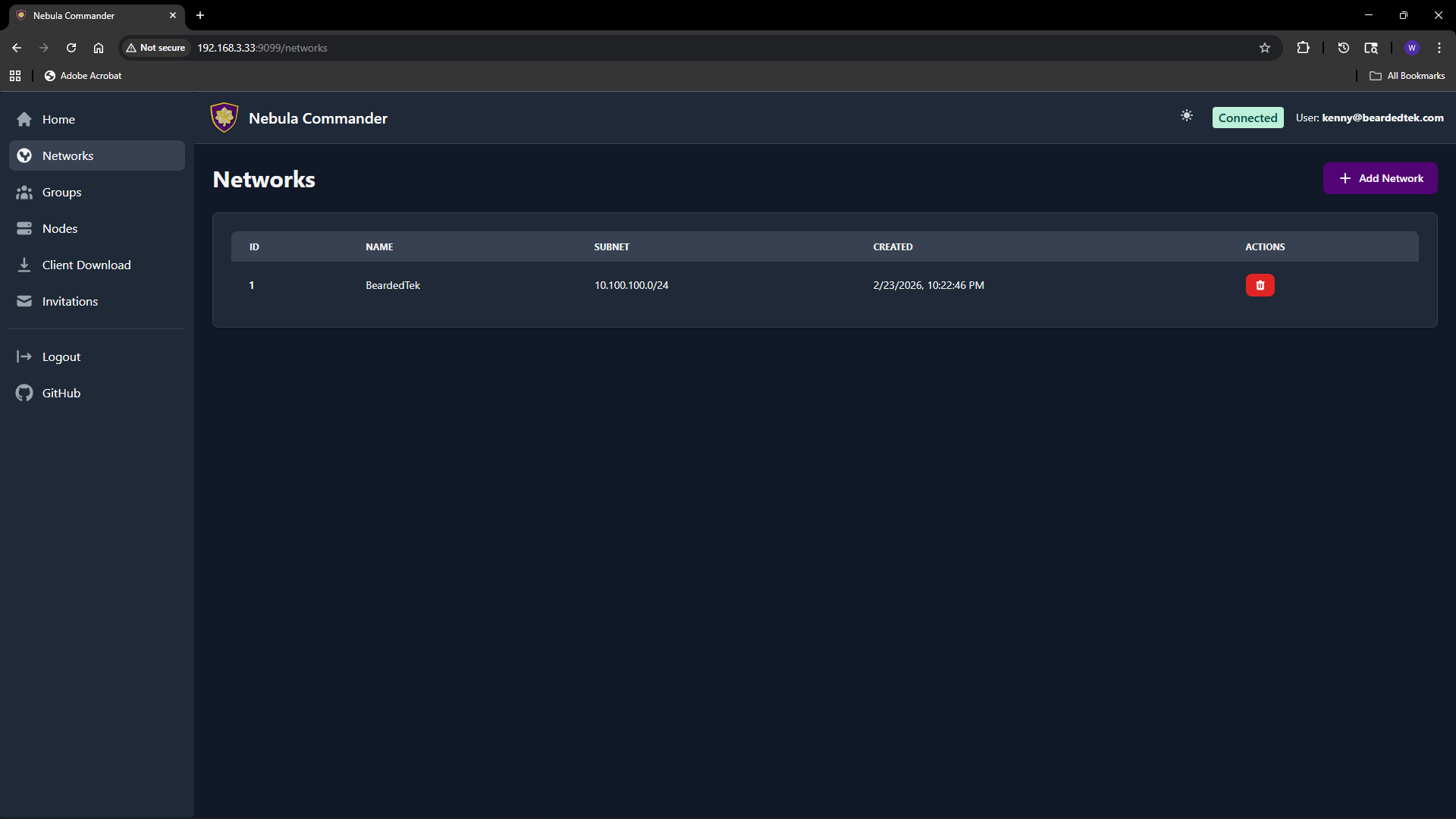
Adding a new network
- Open Networks in the sidebar.
- Click Add Network.
- Fill in the form:
- Network Name – A label for the network (e.g.
production, home). Must be unique and non-empty. - Subnet CIDR – The IPv4 range for this network. Example:
10.100.0.0/24. Node IPs are assigned from this range. Choose a range that does not overlap with your existing networks or LAN.
- Click Create (or submit). The new network appears in the table.
You can create multiple networks to separate environments (e.g. dev, staging, prod) or teams.
Listing and managing networks
The table shows for each network:
- Name – Network name.
- Subnet – CIDR (e.g.
10.100.0.0/24). - Actions – Links to manage nodes in that network, and optionally delete.
Clicking a network row or a “Nodes” link takes you to the Nodes page filtered to that network. From there you add nodes, assign IPs, and manage certificates.
Deleting a network
Deleting a network is a critical action. The UI requires you to reauthenticate before the delete is performed.
- On the Networks page, use the delete action for the network you want to remove.
- A modal opens asking you to type the network name to confirm.
- Type the exact network name and confirm. You are redirected to the OIDC provider (or dev login) to reauthenticate.
- After reauthentication, you are returned to the UI and the network is deleted.
Ensure no nodes or critical services depend on the network before deleting. Deletion removes the network and its node/certificate data from Nebula Commander.
2 - Groups
The Groups page lets you define Nebula security groups and their inbound firewall rules per network. Groups are used by nodes (each node has one or more groups). Firewall rules control which other groups can send traffic to this group and on what protocol and ports.
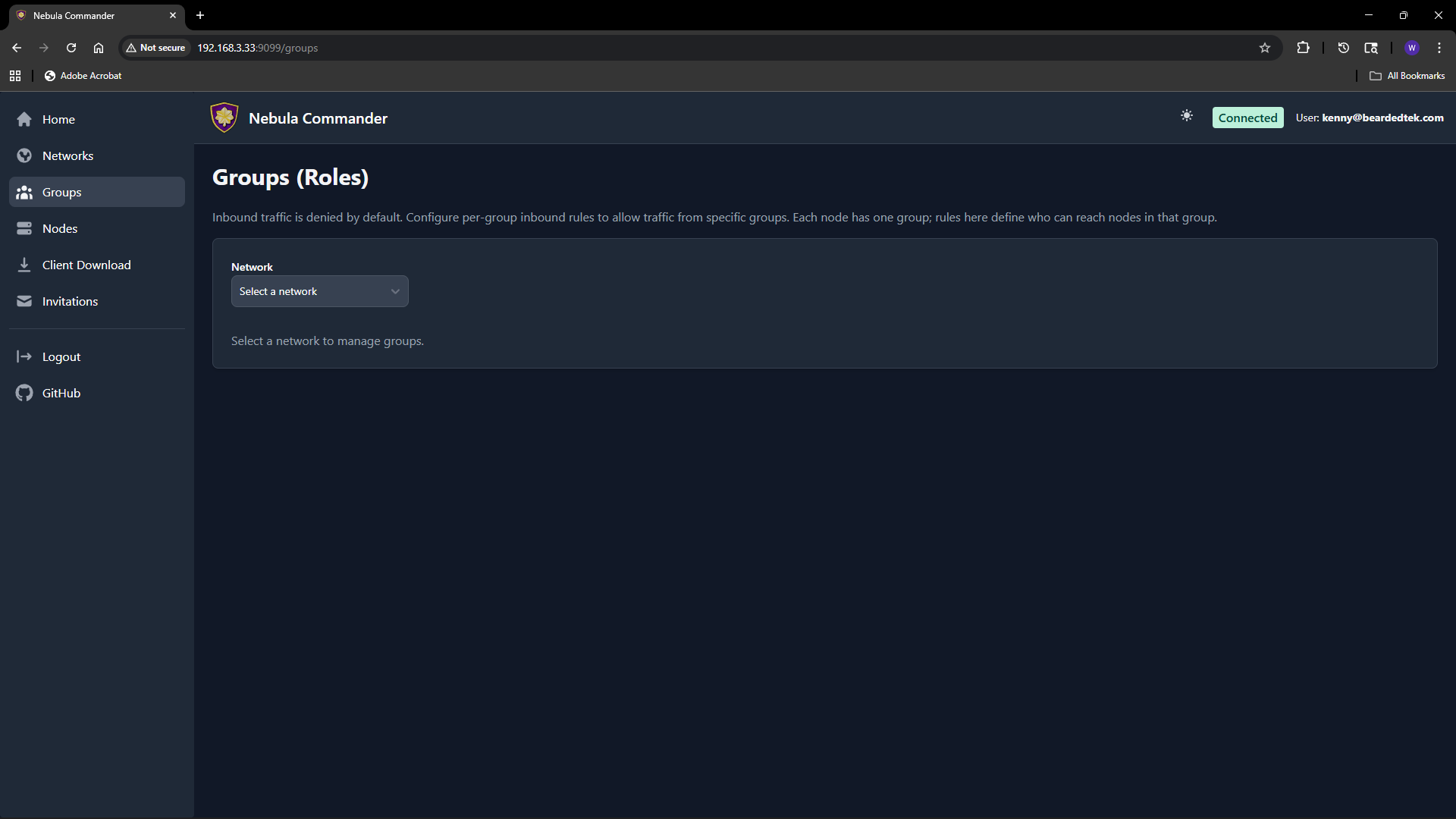
Selecting a network
At the top of the Groups page, choose a network from the dropdown. Groups and rules are per network. Only networks you have access to appear in the list.
What groups are
In Nebula, a group is a tag (e.g. laptops, servers, admin) that you assign to nodes. The firewall then allows or denies traffic based on group membership. On this page you define the inbound rules for each group: which other groups can connect to this group, and on which protocol and port range.
Adding a group
- Select the network.
- In the “Add group” area, enter a new group name (e.g.
servers). Group names are case-sensitive and must be unique within the network. - Click add. The group appears in the list with an empty set of inbound rules. You can then add rules (see below).
Groups are created implicitly when you add the first rule or when you create a node and assign it a group. If the group does not exist yet, adding an inbound rule for it or assigning it to a node will create it.
Firewall rules per group
For each group you configure inbound rules: who can send traffic to this group.
| Field | Description |
|---|
| Allowed group | The name of the other group that is allowed to send traffic to this group. |
| Protocol | any, tcp, udp, or icmp. |
| Port range | Port or range (e.g. 80, 443, 8000-8010) or any for all ports. |
| Description | Optional note for the rule. |
Example: To allow the group laptops to reach the group servers on TCP ports 80 and 443, add an inbound rule on the servers group with allowed group laptops, protocol tcp, and port range 80,443 (or two rules if your UI uses one port per rule).
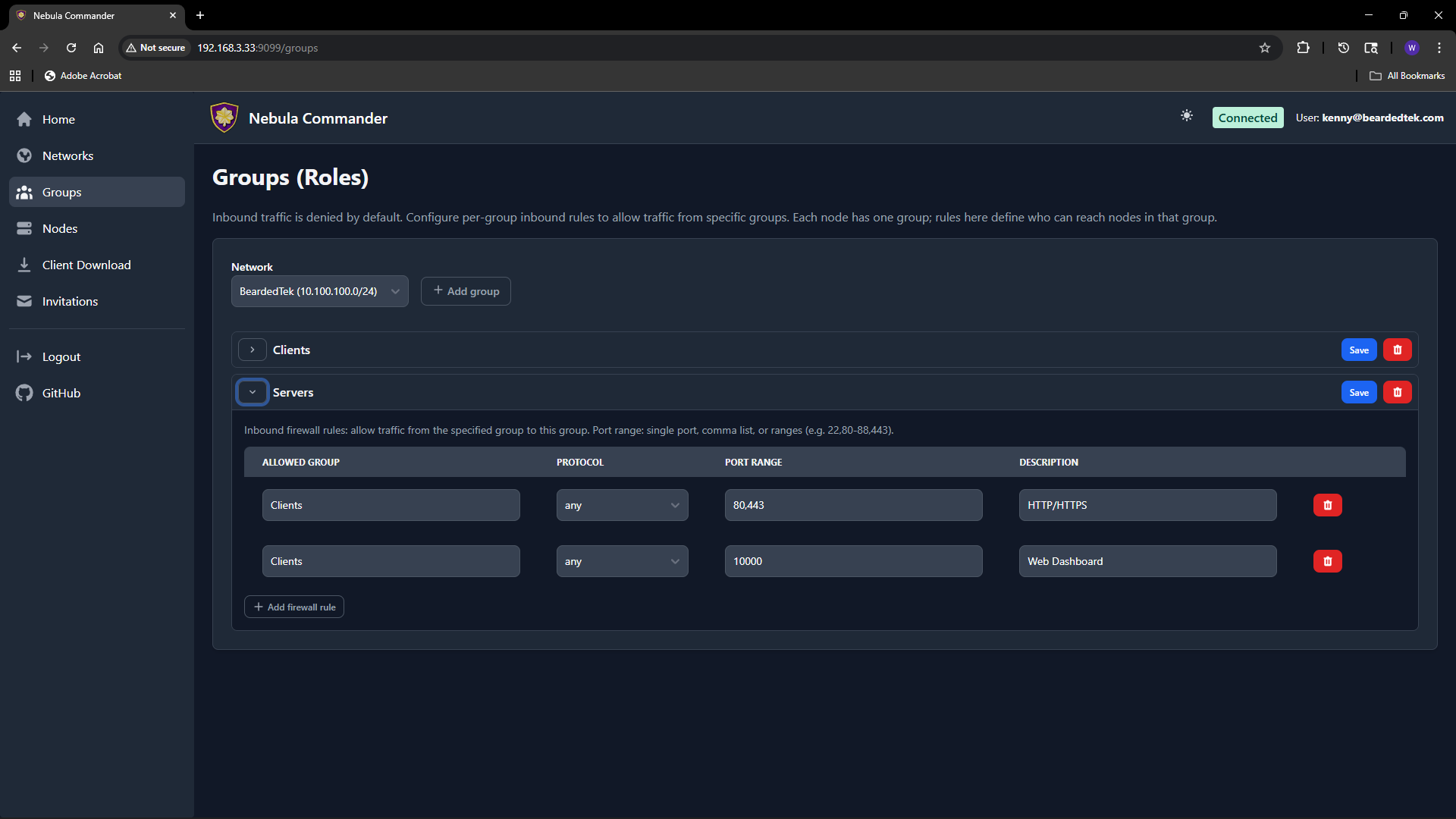
Rules are stored per group. After editing rules, click Save for that group. Changes apply when Nebula config is regenerated (e.g. when ncclient polls or you re-download config).
How to leverage groups
- Segment by role – Put nodes in groups like
laptops, servers, iot. Then allow only laptops and servers to reach iot on specific ports, and only servers to talk to each other on admin ports. - Least privilege – Only add inbound rules that are needed. Avoid
any/any unless intentional. - Node assignment – On the Nodes page, when you create or edit a node you set its group. That node is then subject to the inbound rules defined for that group on this page.
If a group has no inbound rules, no other groups can send traffic to it (default deny). Add rules to allow the desired traffic.
3 - Nodes
The Nodes page lists all nodes across networks (or filtered by one network). You create nodes, assign IPs and groups, create or sign certificates, generate enrollment codes for ncclient, and download config.

Creating a node
- Open Nodes and optionally filter by network.
- Use the Add node (or similar) action. You may need to pick a network first if not filtered.
- Enter a hostname (e.g.
laptop-alice, server-1). The hostname identifies the node and is used in certificates and config. - The server assigns an IP address from the network’s subnet, or you may be able to choose one if the UI allows.
- Set the node’s group (e.g.
laptops, servers). The group is used for firewall rules and must match a group defined for that network. - Submit. The node is created. Next you create or sign a certificate (see below).
Node options (when creating or editing)
When creating or editing a node, you can set:
| Option | Description |
|---|
| Group | Nebula security group(s) for this node. Used for firewall (see Groups). |
| Lighthouse | If enabled, this node acts as a Nebula lighthouse (others can punch through to it). |
| Relay | If enabled, this node can relay traffic for other nodes. |
| Public endpoint | Optional public address (e.g. 1.2.3.4:4242) so other nodes can reach this node. Used for lighthouse/relay. |
| Serve DNS | If the node is a lighthouse, enable to serve DNS for the Nebula network. |
| DNS host / port | Bind address and port for the built-in DNS server (e.g. 0.0.0.0, 53). |
| Interval (seconds) | Nebula’s lighthouse check interval. |
| Log level | panic, fatal, error, warning, info, debug. |
| Log format | json or text. |
| Punchy | Options for NAT punch-through (respond, delay, respond_delay). |
Not all options may be visible in the UI; the table covers the main ones from the API. Defaults are applied for any you leave unset.
Editing a node
Click the node row or an Edit action to open the node details.
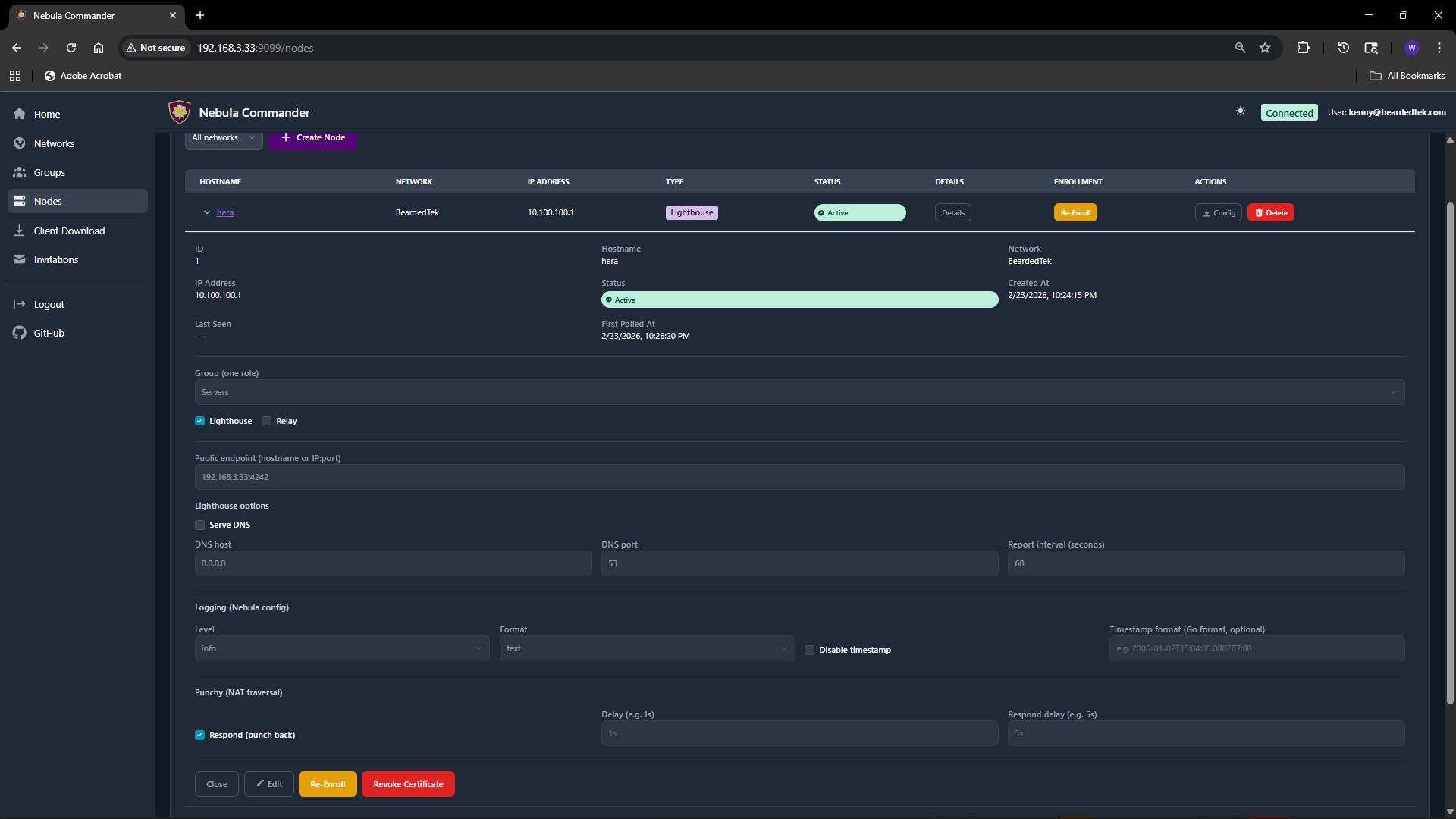 Change hostname, group, lighthouse/relay, public endpoint, DNS, logging, or punchy options as needed. Save. If you change the certificate (create/sign) or group, config for this node will change; devices using ncclient will pick up the change on the next poll.
Certificates: Create vs Sign
For each node you need a host certificate. Two flows:
- Create certificate – The server generates the private key and certificate. You can download a bundle that includes
host.key, host.crt, and ca.crt. Use this when the device does not already have a key (e.g. ncclient or you will copy the bundle to the device). - Sign certificate – You generate the private key on the device; the server only signs the cert. The server never has
host.key. After signing, download host.crt and ca.crt and place them on the device next to your existing host.key.
Choose Create for simplicity when the server can hold the key (or when you will deploy the bundle once). Choose Sign when you want the key to never leave the device.
Enrollment code (for ncclient)
After the node exists and has a certificate, you can generate an enrollment code for ncclient. On the Nodes page, open the node and click Enroll. Copy the one-time code. On the device run:
ncclient enroll --server https://YOUR_NEBULA_COMMANDER_URL --code XXXXXXXX
The device stores a token and can then use ncclient run to pull config and certs. See Client Download for binaries.
Download config
You can download the node’s Nebula config and certs (e.g. config.yaml, ca.crt, host.crt, and host.key if Create was used). Use this for manual (nebula) setup or backup.
Re-enroll and delete
- Re-enroll – If a device was enrolled but the token is lost or expired, you can generate a new enrollment code and run
ncclient enroll again on the device. - Delete node – Removes the node and its certificate from Nebula Commander. Critical actions may require reauthentication. Devices using that node will need a new node or re-enrollment if you recreate it.
4 - Client Download
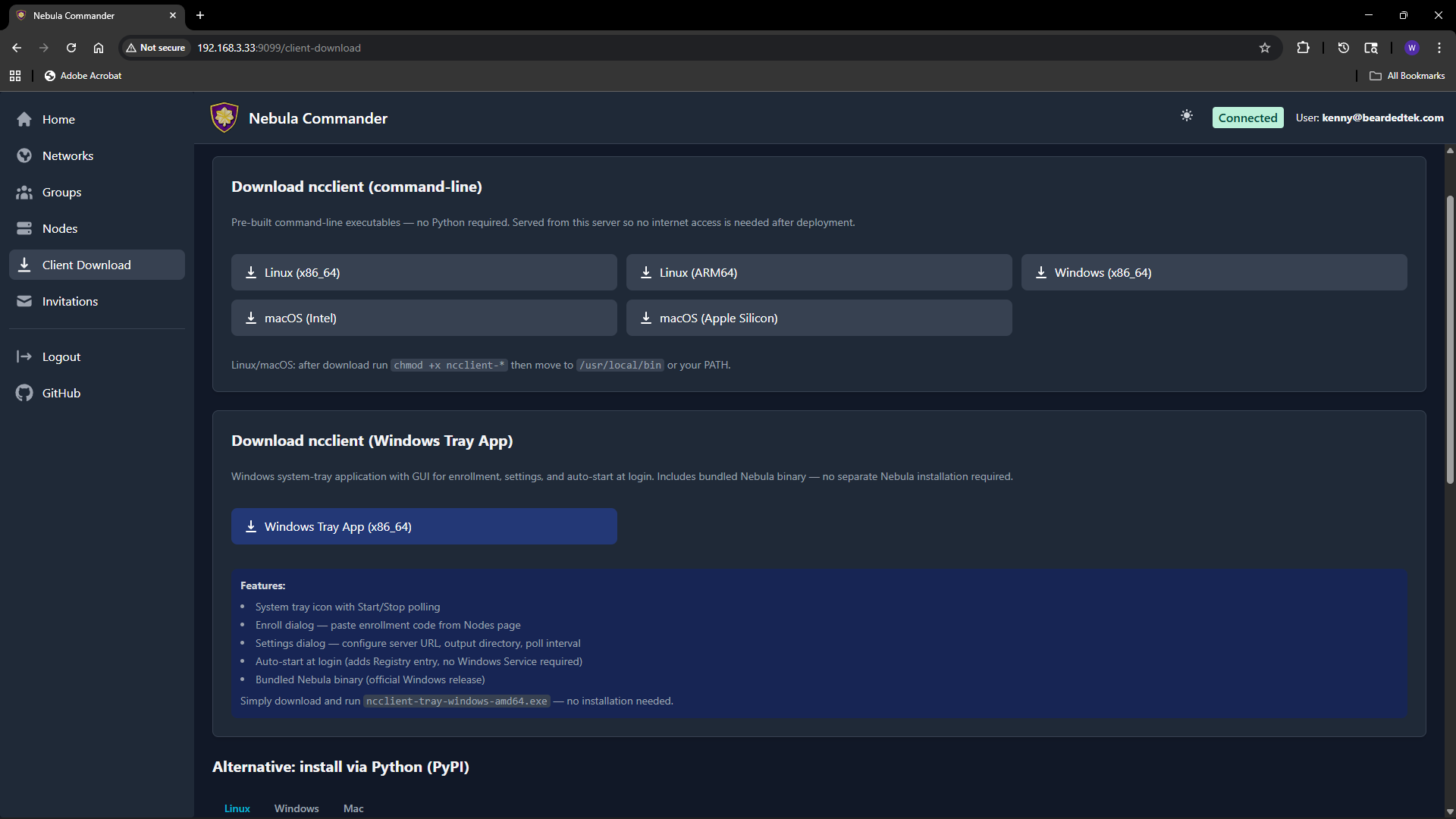
The Client Download page (also reachable from the sidebar or at /client-download) lets users download ncclient binaries served directly from your Nebula Commander instance. No internet access to GitHub is required after deployment.
Purpose
Install and run ncclient on a device to enroll with Nebula Commander and pull config and certificates. The enrollment code is obtained from the Nodes page (Enroll button for the node). This page provides the CLI and, on Windows, the tray app.
CLI binaries (command-line ncclient)
Pre-built executables for:
| Platform | File name |
|---|
| Linux x86_64 | ncclient-linux-amd64 |
| Linux ARM64 | ncclient-linux-arm64 |
| Windows x86_64 | ncclient-windows-amd64.exe |
| macOS Intel | ncclient-macos-amd64 |
| macOS Apple Silicon | ncclient-macos-arm64 |
Downloads are served from /downloads/ (e.g. /downloads/ncclient-linux-amd64). These binaries are only available if the frontend was built with client binaries included (e.g. Docker image built with DOWNLOAD_BINARIES=1). If the page shows no downloads or 404, use ncclient installation from releases or pip instead.
After download on Linux or macOS, make the file executable and place it on your PATH:
chmod +x ncclient-linux-amd64   # or the file you downloaded
# Move to /usr/local/bin or add the directory to PATH
On Windows, add the directory containing ncclient-windows-amd64.exe to your PATH or run it by full path.
Windows Tray App
For Windows, the page may offer:
- ncclient-tray-windows-amd64.exe – Standalone tray application. Features: system tray icon, Start/Stop polling, Enroll dialog (paste code from Nodes page), Settings (server URL, output dir, poll interval), auto-start at login (Registry), and optionally bundled Nebula binary.
Download and run; no installer required. Alternatively, use the MSI installer (e.g. /downloads/NebulaCommander-windows-amd64.msi) to install both the CLI and the tray app and add them to PATH.
Getting the enrollment code
- In the Web UI, go to Nodes.
- Open the node for this device (or create one and create/sign a certificate).
- Click Enroll and copy the one-time code.
- On the device, run:
ncclient enroll --server https://YOUR_SERVER_URL --code XXXXXXXX.
Then run ncclient run --server https://YOUR_SERVER_URL to start polling for config and certs. See ncclient usage for full steps.
5 - Invitations
The Invitations page lets network owners (and system admins) invite users to a network with a chosen role and permissions. Invitations work when OIDC is configured; invited users sign in via the IdP and then gain access to the specified network.
What invitations are
An invitation associates an email (or link) with a network, a role (e.g. member, admin), and optional permissions (can manage nodes, can invite users, can manage firewall). The invitee accepts by clicking a link or using a token; after acceptance they appear as a user with access to that network according to the role and permissions.
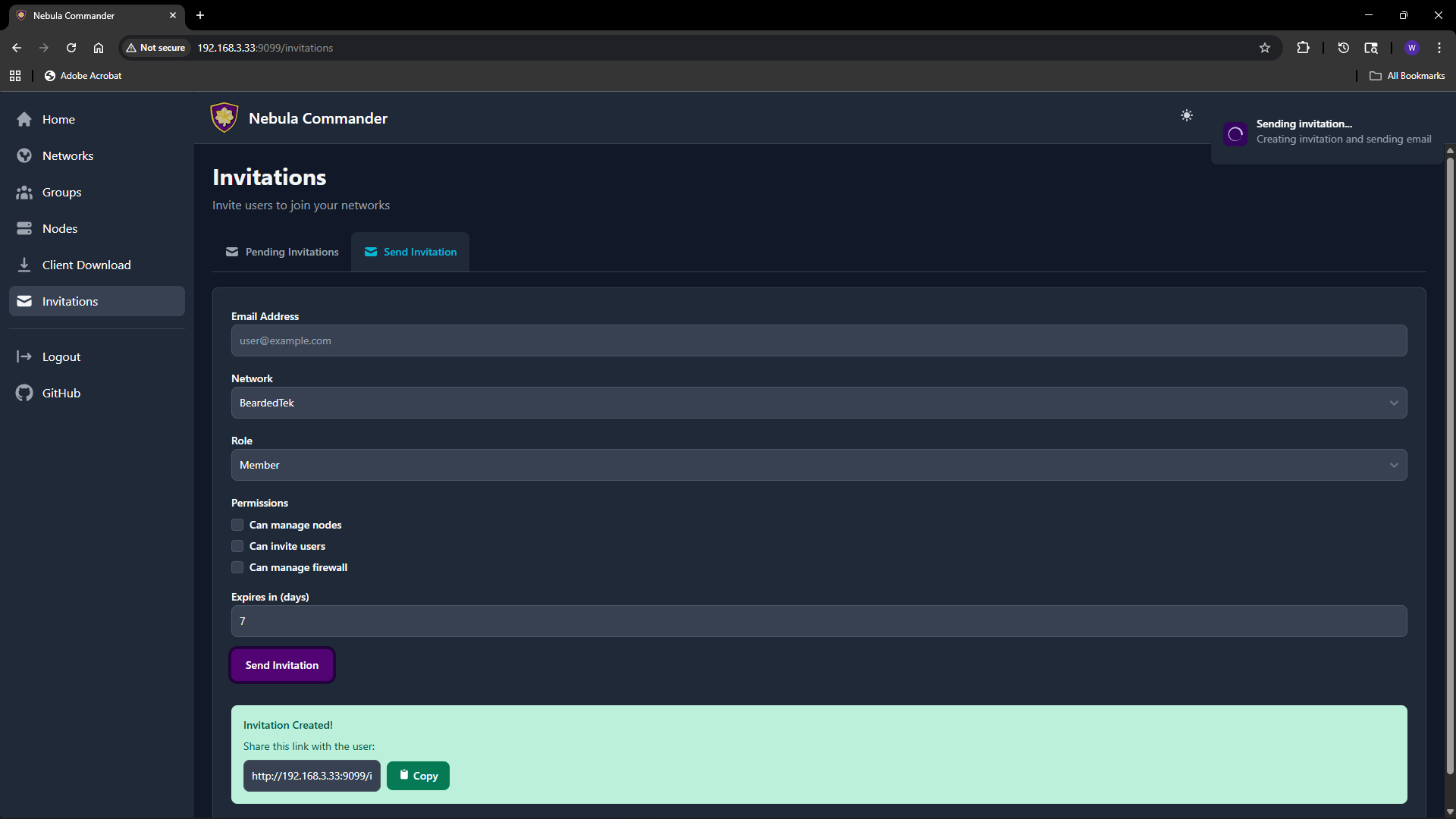
Creating an invitation
- Open Invitations in the sidebar.
- Use the “Invite user” or similar form.
- Fill in:
- Email – Invitee’s email (used for the invite link and, if SMTP is configured, to send the email).
- Network – The network to grant access to.
- Role – e.g.
member or admin. Affects default permissions. - Can manage nodes – Allow the user to add, edit, delete nodes in this network.
- Can invite users – Allow the user to send further invitations for this network.
- Can manage firewall – Allow the user to edit groups and firewall rules for this network.
- Expires in (days) – How long the invitation link is valid (e.g. 7 days).
- Submit. You can either send email (if SMTP is configured) or copy link to send manually.
The invitation appears in the list with status (e.g. pending, accepted, expired).
Accepting an invitation
The invitee opens the invitation link (from email or shared link). The link contains a token and typically looks like /invitations/accept/TOKEN. They are prompted to log in with OIDC if not already logged in. After accepting, they have access to the network according to the role and permissions set in the invitation.
Listing and revoking
The Invitations page lists all invitations you created (or all invitations in the system if you are a system admin).
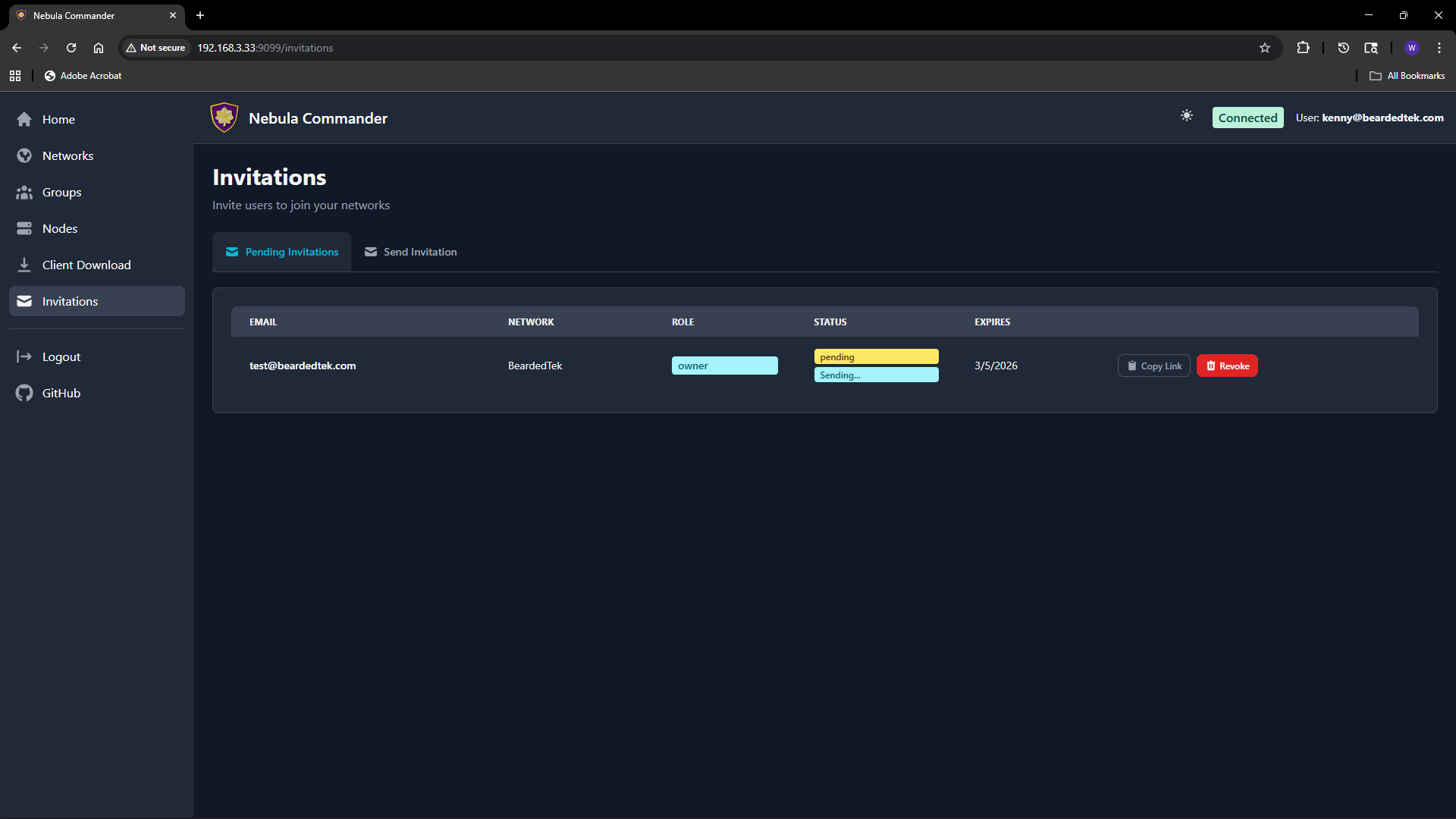 You can see status (pending, accepted, expired), email, network, role, and expiry. To revoke a pending invitation, use the revoke or delete action; the link will no longer work.
Email delivery
If the backend has SMTP configured, invitation emails are sent automatically when you create an invitation. If SMTP is not configured, use “Copy link” and share the URL manually. Email status (sent, failed) may be shown on the invitation row; check the Environment docs for SMTP options.