Linux App
| Light | Dark |
|---|---|
 |  |
On Linux, Nebula Commander (GTK4/libadwaita) is an unelevated desktop app for the background ncclient systemd service. The service does the actual work (polling for config and certs, running Nebula) as root, and exposes a system D-Bus API (org.beardedtek.NebulaCommander1) that the app talks to, authorized per call via polkit for any active local session. There’s no group membership or relogin step, and no password prompt for enrolling, starting or stopping the service, or accepting routes.
The app and service are installed together via .deb, .rpm, or Flatpak. The app isn’t designed to run without the service; if the service isn’t installed or running, the Status tab says so. On a server you can install just nebula-commander-service and manage it from the shell (see Headless use).
Where state lives
The service keeps its token, settings.json, generated Nebula config, and status under /var/lib/ncclient/ (root-only). The app never reads these files directly, only through the D-Bus API. The service uses the distribution’s nebula binary unless you set a path in Settings.
Enroll
- Open Nebula Commander from your application launcher.
- Go to the Enrollment tab and enter the server URL and the one-time code from Nebula Commander (Nodes → open the node → Enroll).
The service picks up the token right away; it waits for enrollment instead of exiting when it has none.
Using the app
The app has three tabs in its header bar and follows the desktop’s light/dark preference.
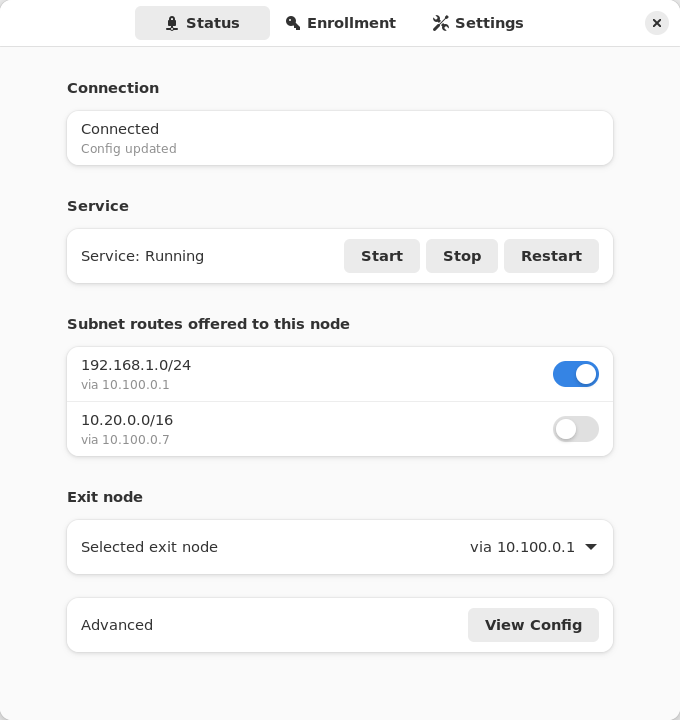
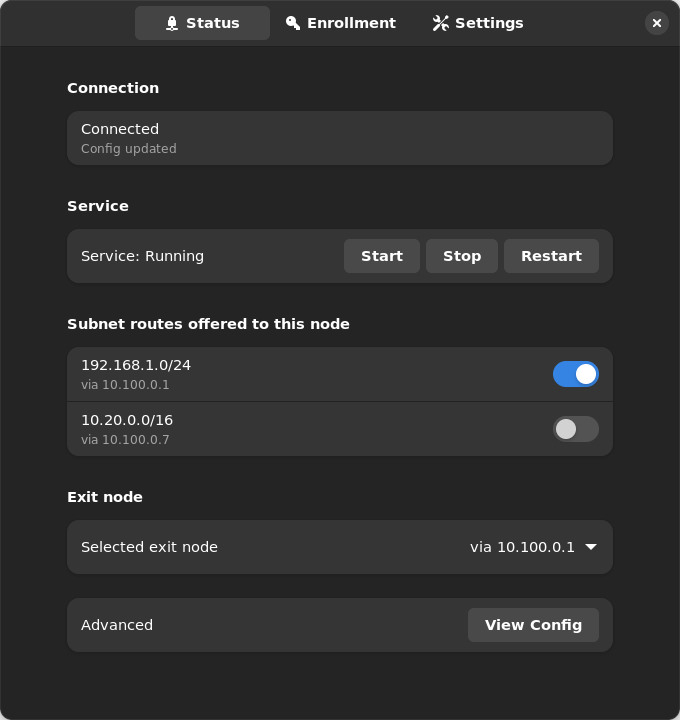
- Status: connection state (e.g. Connected – Config updated), the systemd service state with Start/Stop/Restart buttons, a switch for each subnet route offered to this node, an Exit node picker, and View Config (under Advanced) to see the generated
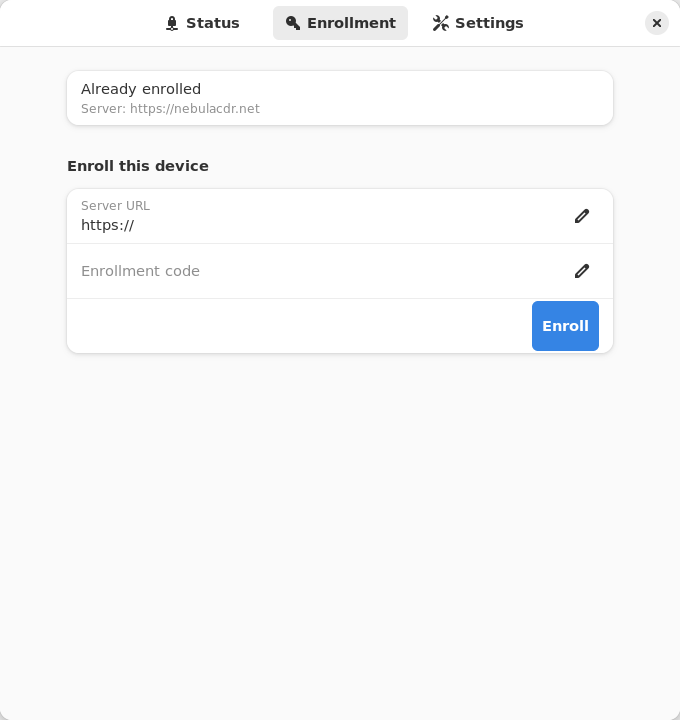
config.yaml. Routes that overlap one you’ve already accepted are shown disabled with the reason. You also get a desktop notification when the connection state changes or a new route is offered. - Enrollment: shows whether the device is enrolled (and to which server), and lets you enroll with a server URL and code.
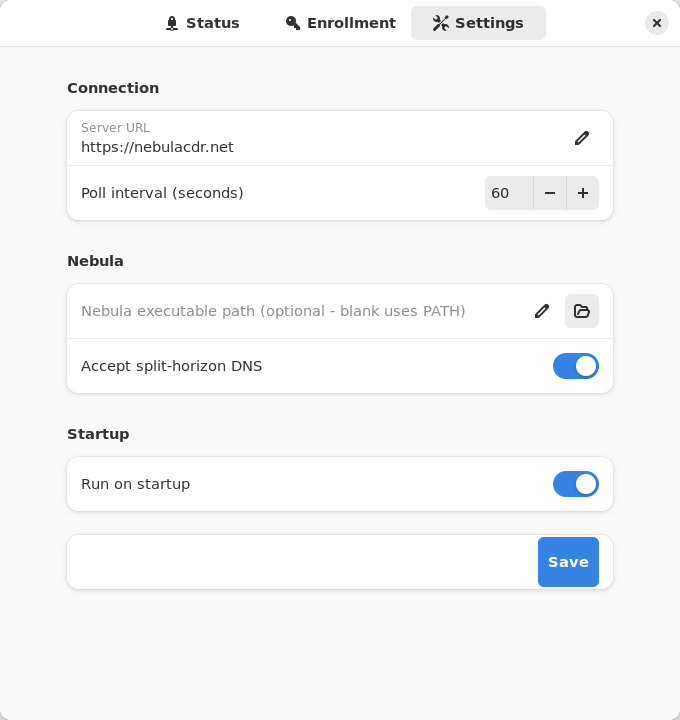
- Settings: server URL, poll interval, optional path to the Nebula binary (blank uses
PATH), Accept split-horizon DNS, and Run on startup (an XDG autostart entry for the app itself). Saving restarts the service automatically so the new values take effect.
| Enrollment | Settings |
|---|---|
 |  |
Subnet routes and exit nodes
Use the switches and the Exit node picker on the Status tab. Changes apply on the service’s next poll. See Subnet routers and exit nodes for how routes are offered.
Split-horizon DNS
Turn on Accept split-horizon DNS in Settings and save. The service restarts with --accept-dns and configures the host’s resolver to match how it manages DNS (systemd-resolved, NetworkManager, dnsmasq, or /etc/resolv.conf). See Split-horizon DNS on the CLI page for details.
Re-enroll
Open the Enrollment tab and enroll again with a new code (and a new server URL, if you’re moving servers). This replaces the device token. The service switches to the new token on its next poll. If you changed the server, click Restart on the Status tab so it polls the new URL.
Headless use (service only)
With only nebula-commander-service installed, manage the service from the shell:
sudo systemctl status ncclient
sudo systemctl restart ncclient
journalctl -u ncclient -f
The service reads /var/lib/ncclient, so any CLI command that touches its state must be pointed there with both environment variables. Otherwise ncclient uses root’s own locations, which the service never reads.
Enroll or re-enroll:
sudo NEBULA_COMMANDER_CONFIG_DIR=/var/lib/ncclient \
     NEBULA_DEVICE_TOKEN_FILE=/var/lib/ncclient/token \
     ncclient enroll --server https://YOUR_NEBULA_COMMANDER_URL --code XXXXXXXX
sudo systemctl enable --now ncclient
On re-enroll the service picks up the new token on its next poll; restart it if you changed servers.
Subnet routes and exit nodes:
sudo NEBULA_COMMANDER_CONFIG_DIR=/var/lib/ncclient \
     ncclient routes --output-dir /var/lib/ncclient list
The accept, reject, accept-exit-node --via <IP>, and reject-exit-node subcommands take the same prefix (see the CLI page).
Split-horizon DNS: the service adds --accept-dns when /var/lib/ncclient/settings.json contains "accept_dns": true. Edit it as root, then sudo systemctl restart ncclient.
Troubleshooting
- Status says the service isn’t installed or is unreachable: install
nebula-commander-serviceand start it withsudo systemctl enable --now ncclient. The Flatpak app can’t do this for you. Token invalid or expired. Waiting for re-enrollment...in the journal: the node was re-enrolled elsewhere or its token revoked. Re-enroll.- Enrolled with
sudo ncclient enrollbut the service still waits for enrollment: the token went to root’s home directory instead of/var/lib/ncclient. Use the headless command with both variables.
Run from source
From the nebula-commander repo root, with PyGObject, GTK 4, libadwaita, and jeepney installed (on Debian/Ubuntu: python3-gi gir1.2-gtk-4.0 gir1.2-adw-1 python3-jeepney):
python3 -m client.linux.desktop
It still needs a running ncclient.service that exposes the D-Bus API (from nebula-commander-service or the NixOS module). Without one, Status shows the service as not installed.
Build
See Linux Desktop App installation and Development: Manual builds for building the .deb/.rpm/Flatpak packages yourself.