Appearance
The Appearance page (sidebar → Appearance, or /settings/appearance) lets
each user customize the colors used across Nebula Commander — this is a personal
preference, saved to your own account, not a site-wide setting an admin controls.
| Light | Dark |
|---|---|
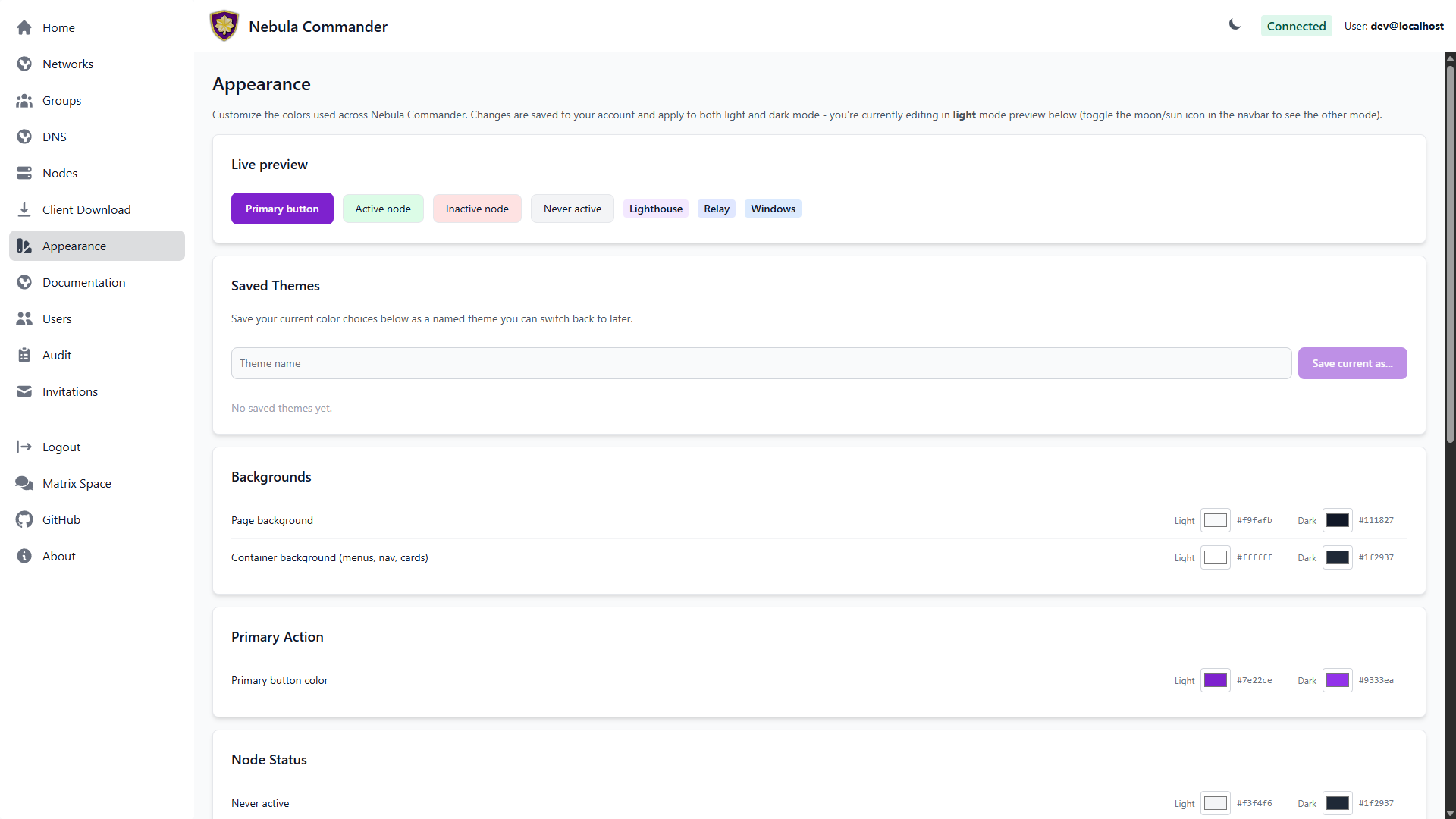 | 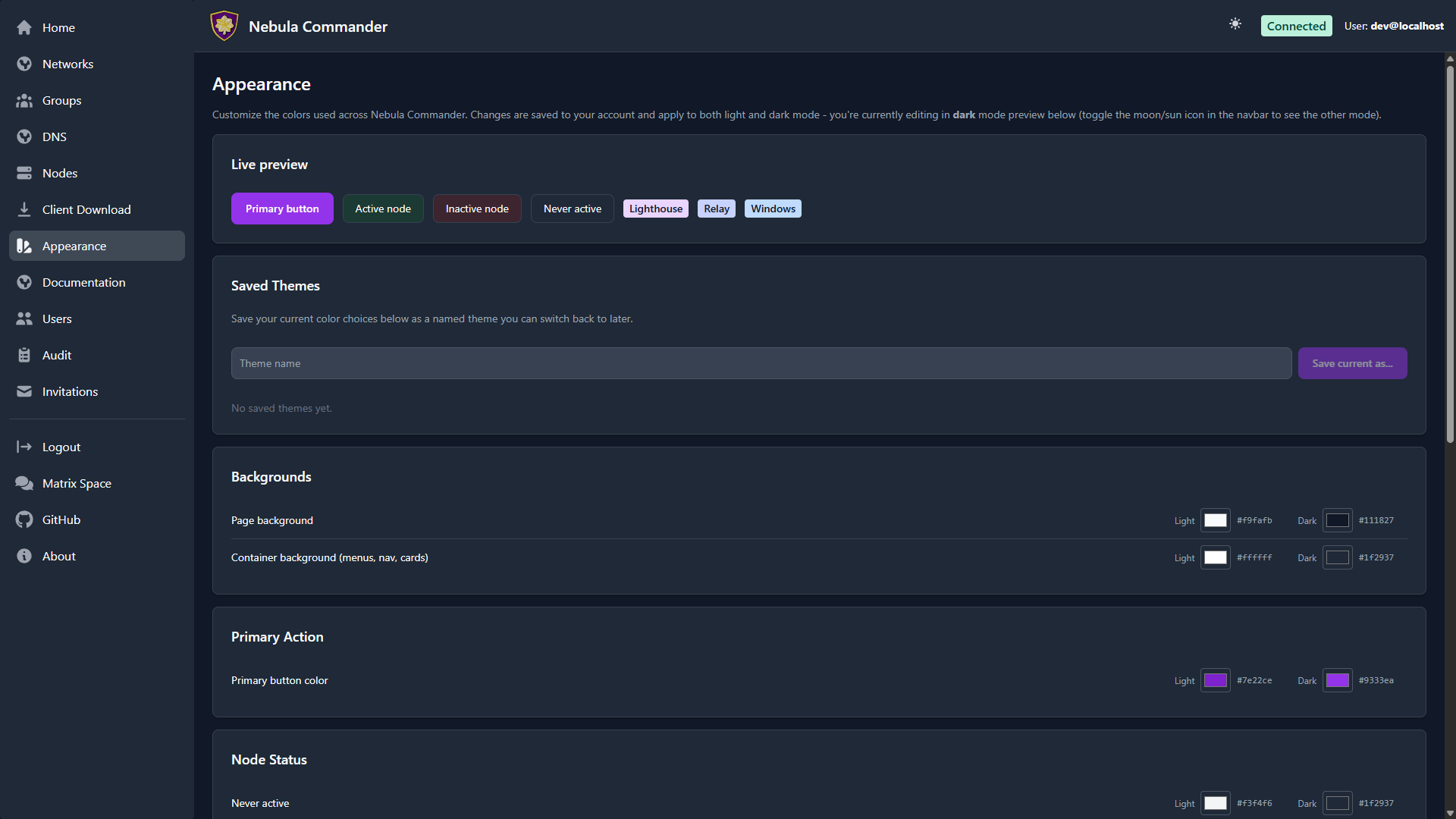 |
Every color you pick automatically gets a readable, contrast-checked foreground: buttons, badges, status cards, and the page/container backgrounds all compute their own text color (near-black or near-white) from whatever background you choose, so an unusually light or dark pick never turns into illegible same-on-same text.
Light and dark mode
The moon/sun toggle in the top navbar switches between light and dark mode; the choice is remembered in your browser. Every color you customize on the Appearance page has separate light and dark values — changing one never affects the other, and the values shown on the page follow whichever mode you’re currently in (a banner at the top of the page says which).
What’s themeable
Colors are grouped by where they show up:
- Backgrounds — the page background, and a separate “container” background shared by the sidebar, the top navbar, and every card throughout the app.
- Primary Action — the color used for primary buttons everywhere in the app.
- Node Status — the three background colors used on Nodes cards: never active, active, and inactive.
- Type / OS Badges — the background color of each badge shown on a node’s card (Lighthouse, Relay, iOS, Android, Windows, Linux, macOS, and the generic Node fallback). The badge’s text color is computed automatically for contrast against whatever background you pick, so you never have to set it separately.
- Group Access Diagram — the restricted/open group colors and the edge color used in the Network detail page’s access diagram.
Every color picker shows the current hex code (e.g. #7e22ce) next to the swatch,
so you can match an exact brand color or copy a value elsewhere.
A live preview at the top of the page shows a sample button, status colors, and badges updating as you edit, before you save anything.
Saving changes
Editing a color only updates the live preview — nothing is persisted until you click Save changes. Reset to defaults reverts every color in the editor back to Nebula Commander’s built-in defaults (also just a local edit, until you save).
Saved themes
Beyond your one active set of colors, you can build a personal library of named presets:
- Adjust colors to what you want.
- Type a name under Saved Themes and click Save current as…. This saves whatever is currently in the editor, independent of whether you’ve clicked Save changes yet.
- Later, click Apply on any saved theme to make it your active theme immediately (this does persist right away — no separate save step). Delete removes a saved theme; recreating one costs nothing, so there’s no confirmation flow beyond a single prompt.
Saved themes are private to your account — other users don’t see them, and there’s no site-wide/shared theme.
Exporting a theme
Click Export YAML (next to Save changes/Reset to defaults) to download the
colors currently in the editor as a .yaml file. Each saved theme also has its
own export button in the Saved Themes list, so you can back up or share a
specific preset. This is export only today - there’s no import button yet, so
re-applying an exported file means manually re-entering its colors.