Client Download
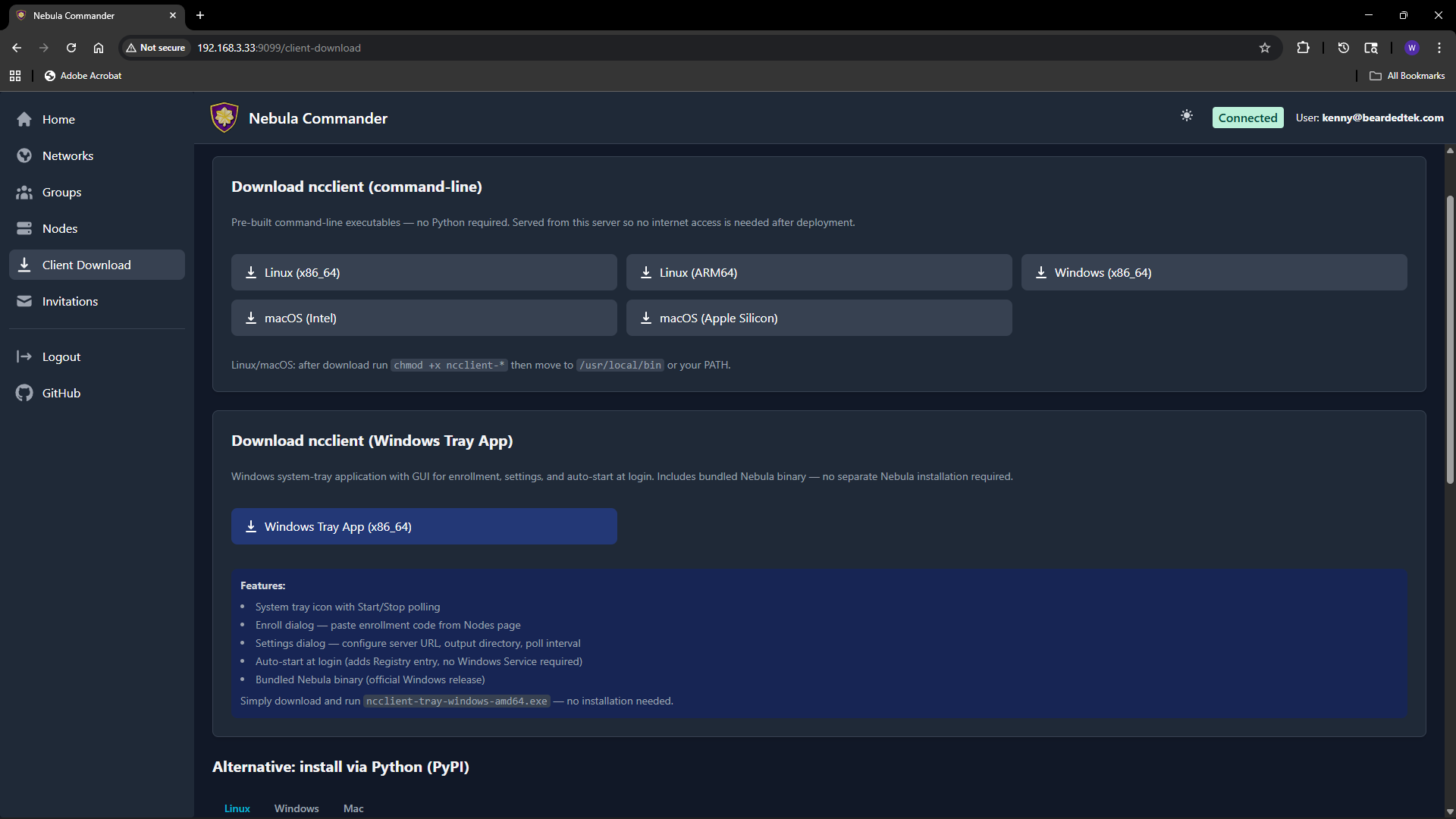
The Client Download page (also reachable from the sidebar or at /client-download) lets users download ncclient binaries served directly from your Nebula Commander instance. No internet access to GitHub is required after deployment.
Purpose
Install and run ncclient on a device to enroll with Nebula Commander and pull config and certificates. The enrollment code is obtained from the Nodes page (Enroll button for the node). This page provides the CLI and, on Windows, the tray app.
CLI binaries (command-line ncclient)
Pre-built executables for:
| Platform | File name |
|---|---|
| Linux x86_64 | ncclient-linux-amd64 |
| Linux ARM64 | ncclient-linux-arm64 |
| Windows x86_64 | ncclient-windows-amd64.exe |
| macOS Intel | ncclient-macos-amd64 |
| macOS Apple Silicon | ncclient-macos-arm64 |
Downloads are served from /downloads/ (e.g. /downloads/ncclient-linux-amd64). These binaries are only available if the frontend was built with client binaries included (e.g. Docker image built with DOWNLOAD_BINARIES=1). If the page shows no downloads or 404, use ncclient installation from releases or pip instead.
After download on Linux or macOS, make the file executable and place it on your PATH:
chmod +x ncclient-linux-amd64   # or the file you downloaded
# Move to /usr/local/bin or add the directory to PATH
On Windows, add the directory containing ncclient-windows-amd64.exe to your PATH or run it by full path.
Windows Tray App
For Windows, the page may offer:
- ncclient-tray-windows-amd64.exe – Standalone tray application. Features: system tray icon, Start/Stop polling, Enroll dialog (paste code from Nodes page), Settings (server URL, output dir, poll interval), auto-start at login (Registry), and optionally bundled Nebula binary.
Download and run; no installer required. Alternatively, use the MSI installer (e.g. /downloads/NebulaCommander-windows-amd64.msi) to install both the CLI and the tray app and add them to PATH.
Getting the enrollment code
- In the Web UI, go to Nodes.
- Open the node for this device (or create one and create/sign a certificate).
- Click Enroll and copy the one-time code.
- On the device, run:
ncclient enroll --server https://YOUR_SERVER_URL --code XXXXXXXX.
Then run ncclient run --server https://YOUR_SERVER_URL to start polling for config and certs. See ncclient usage for full steps.