Networks
The Networks page lists all Nebula networks you can access and lets you create or delete networks. Each network has a name and a subnet (CIDR) used for IP allocation to nodes.
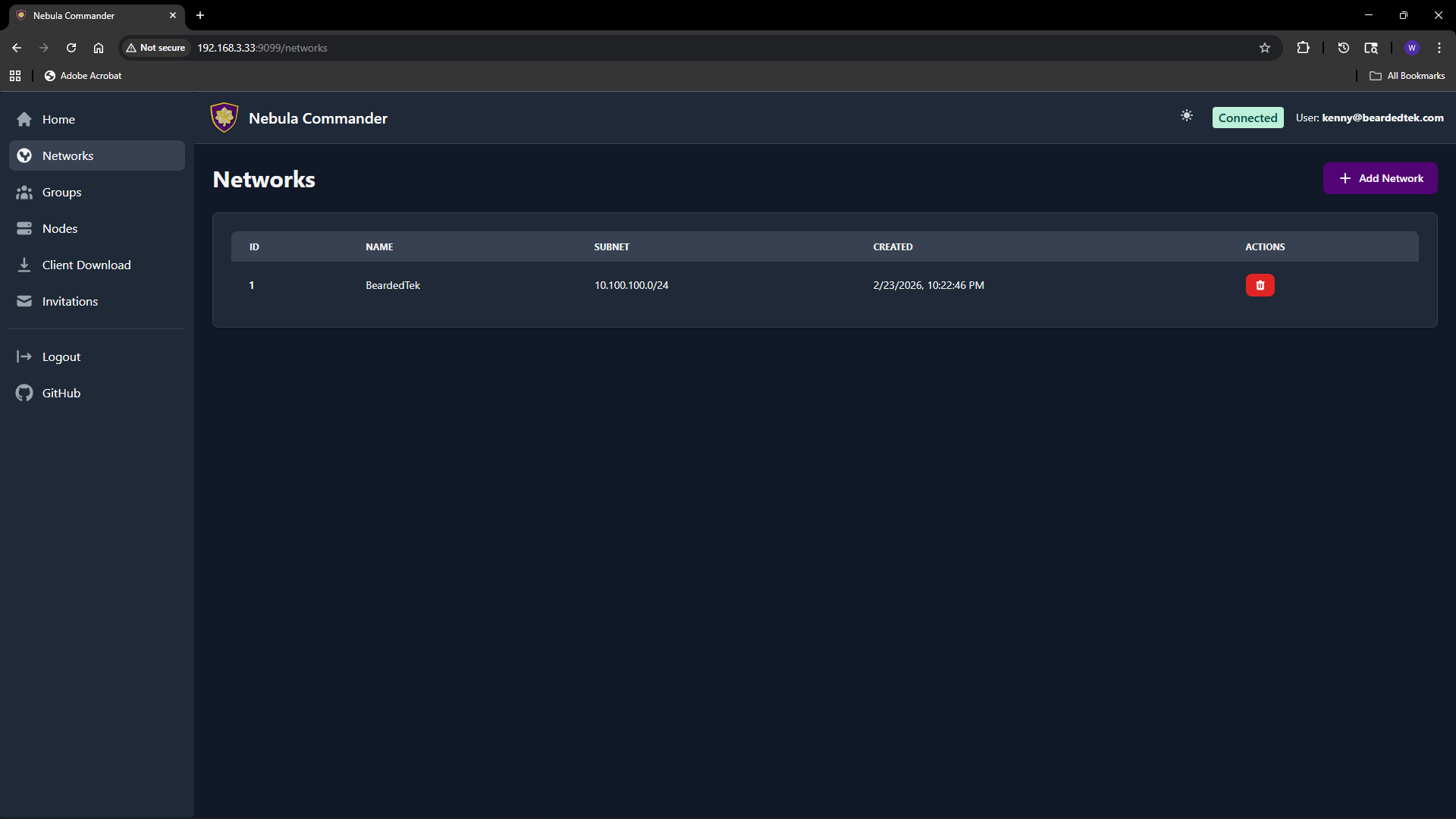
Adding a new network
- Open Networks in the sidebar.
- Click Add Network.
- Fill in the form:
- Network Name – A label for the network (e.g.
production,home). Must be unique and non-empty. - Subnet CIDR – The IPv4 range for this network. Example:
10.100.0.0/24. Node IPs are assigned from this range. Choose a range that does not overlap with your existing networks or LAN.
- Network Name – A label for the network (e.g.
- Click Create (or submit). The new network appears in the table.
You can create multiple networks to separate environments (e.g. dev, staging, prod) or teams.
Listing and managing networks
The table shows for each network:
- Name – Network name.
- Subnet – CIDR (e.g.
10.100.0.0/24). - Actions – Links to manage nodes in that network, and optionally delete.
Clicking a network row or a “Nodes” link takes you to the Nodes page filtered to that network. From there you add nodes, assign IPs, and manage certificates.
Deleting a network
Deleting a network is a critical action. The UI requires you to reauthenticate before the delete is performed.
- On the Networks page, use the delete action for the network you want to remove.
- A modal opens asking you to type the network name to confirm.
- Type the exact network name and confirm. You are redirected to the OIDC provider (or dev login) to reauthenticate.
- After reauthentication, you are returned to the UI and the network is deleted.
Ensure no nodes or critical services depend on the network before deleting. Deletion removes the network and its node/certificate data from Nebula Commander.