Nodes
The Nodes page lists all nodes across networks (or filtered by one network). You create nodes, assign IPs and groups, create or sign certificates, generate enrollment codes for ncclient, and download config.

Creating a node
- Open Nodes and optionally filter by network.
- Use the Add node (or similar) action. You may need to pick a network first if not filtered.
- Enter a hostname (e.g.
laptop-alice,server-1). The hostname identifies the node and is used in certificates and config. - The server assigns an IP address from the network’s subnet, or you may be able to choose one if the UI allows.
- Set the node’s group (e.g.
laptops,servers). The group is used for firewall rules and must match a group defined for that network. - Submit. The node is created. Next you create or sign a certificate (see below).
Node options (when creating or editing)
When creating or editing a node, you can set:
| Option | Description |
|---|---|
| Group | Nebula security group(s) for this node. Used for firewall (see Groups). |
| Lighthouse | If enabled, this node acts as a Nebula lighthouse (others can punch through to it). |
| Relay | If enabled, this node can relay traffic for other nodes. |
| Public endpoint | Optional public address (e.g. 1.2.3.4:4242) so other nodes can reach this node. Used for lighthouse/relay. |
| Serve DNS | If the node is a lighthouse, enable to serve DNS for the Nebula network. |
| DNS host / port | Bind address and port for the built-in DNS server (e.g. 0.0.0.0, 53). |
| Interval (seconds) | Nebula’s lighthouse check interval. |
| Log level | panic, fatal, error, warning, info, debug. |
| Log format | json or text. |
| Punchy | Options for NAT punch-through (respond, delay, respond_delay). |
Not all options may be visible in the UI; the table covers the main ones from the API. Defaults are applied for any you leave unset.
Editing a node
Click the node row or an Edit action to open the node details.
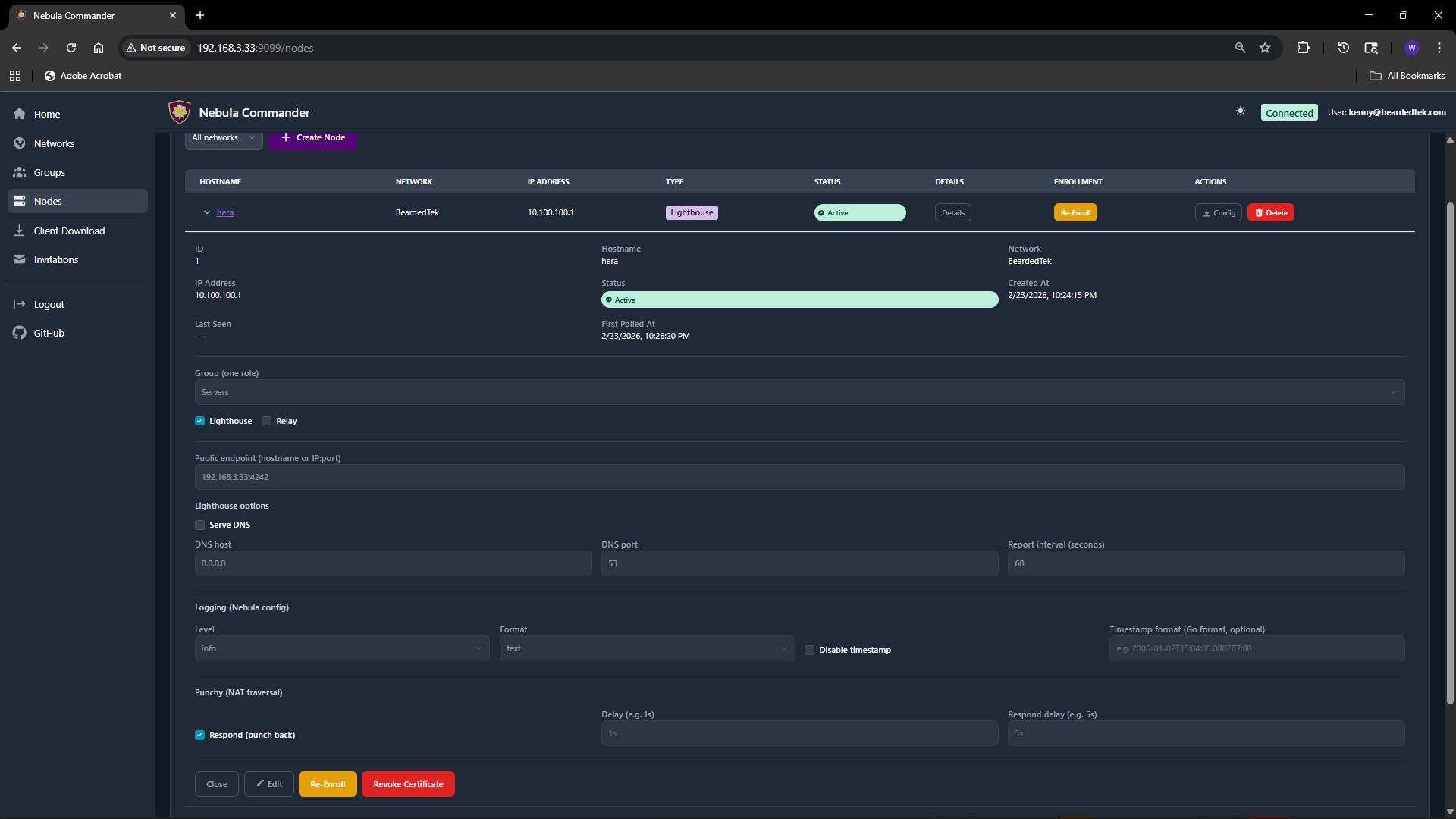 Change hostname, group, lighthouse/relay, public endpoint, DNS, logging, or punchy options as needed. Save. If you change the certificate (create/sign) or group, config for this node will change; devices using ncclient will pick up the change on the next poll.
Certificates: Create vs Sign
For each node you need a host certificate. Two flows:
- Create certificate – The server generates the private key and certificate. You can download a bundle that includes
host.key,host.crt, andca.crt. Use this when the device does not already have a key (e.g. ncclient or you will copy the bundle to the device). - Sign certificate – You generate the private key on the device; the server only signs the cert. The server never has
host.key. After signing, downloadhost.crtandca.crtand place them on the device next to your existinghost.key.
Choose Create for simplicity when the server can hold the key (or when you will deploy the bundle once). Choose Sign when you want the key to never leave the device.
Enrollment code (for ncclient)
After the node exists and has a certificate, you can generate an enrollment code for ncclient. On the Nodes page, open the node and click Enroll. Copy the one-time code. On the device run:
ncclient enroll --server https://YOUR_NEBULA_COMMANDER_URL --code XXXXXXXX
The device stores a token and can then use ncclient run to pull config and certs. See Client Download for binaries.
Download config
You can download the node’s Nebula config and certs (e.g. config.yaml, ca.crt, host.crt, and host.key if Create was used). Use this for manual (nebula) setup or backup.
Re-enroll and delete
- Re-enroll – If a device was enrolled but the token is lost or expired, you can generate a new enrollment code and run
ncclient enrollagain on the device. - Delete node – Removes the node and its certificate from Nebula Commander. Critical actions may require reauthentication. Devices using that node will need a new node or re-enrollment if you recreate it.