Users
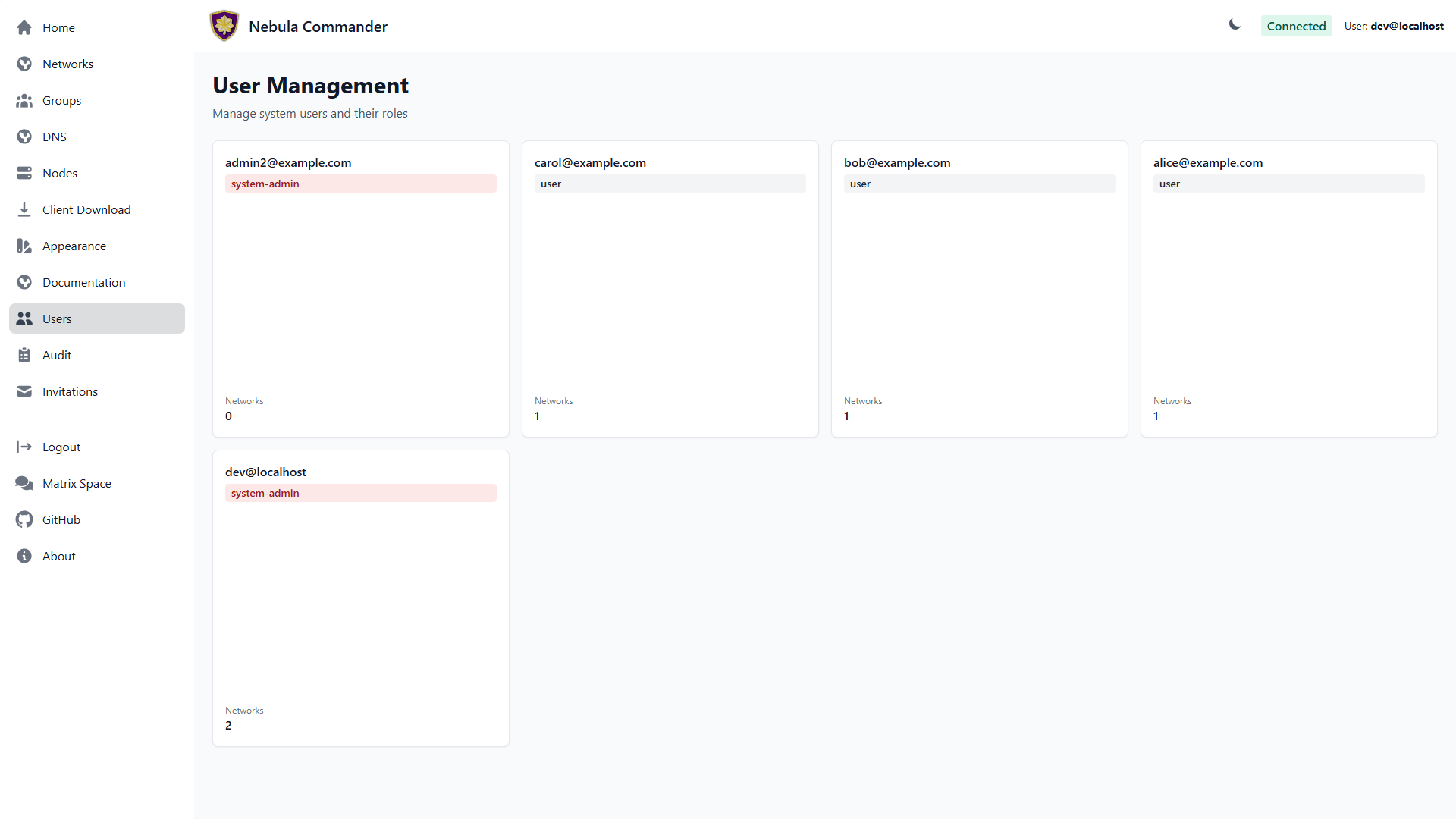
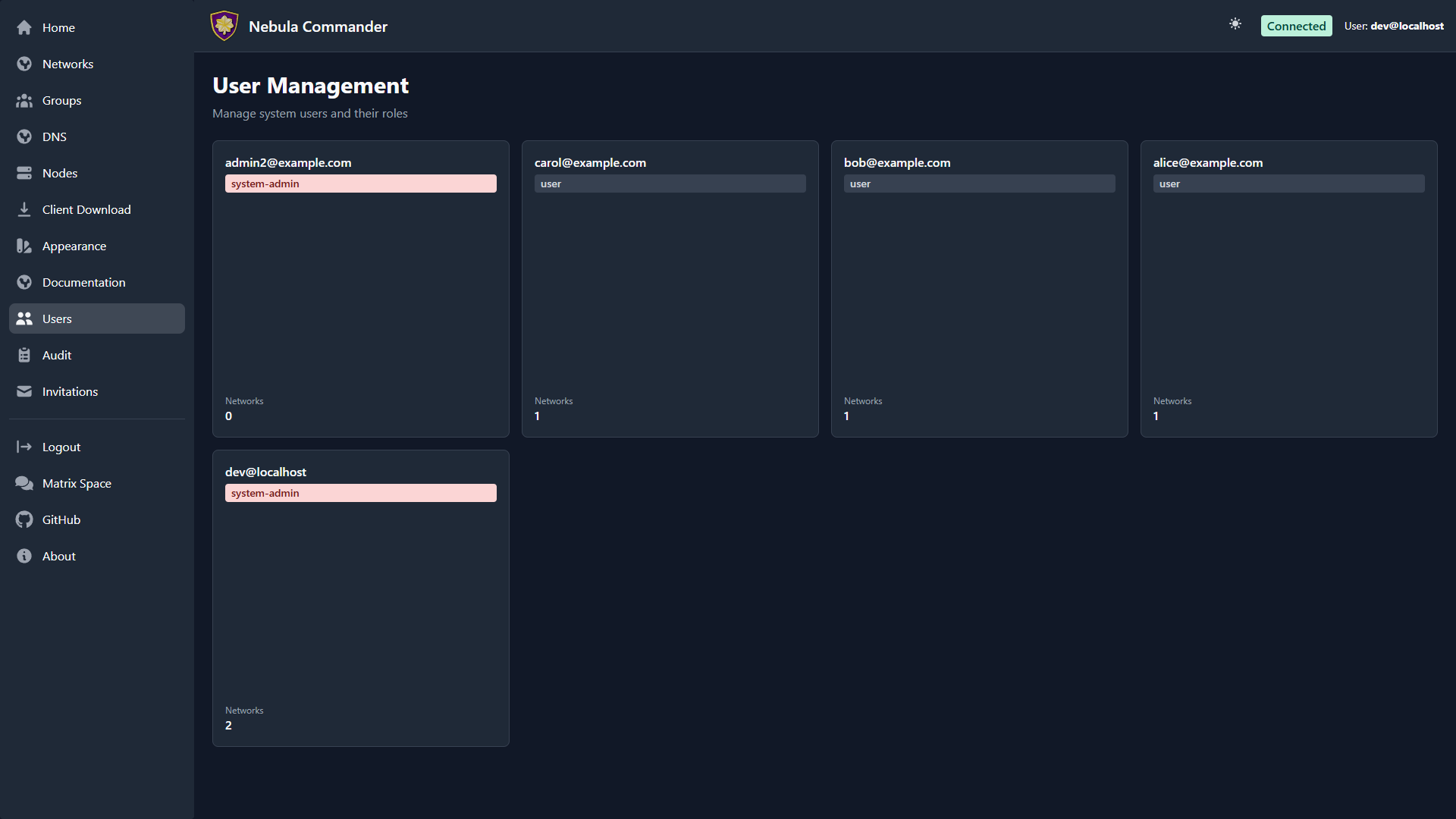
The Users page (sidebar → Users) lists every user account in Nebula Commander as a grid of square cards. It’s visible only to system admins — everyone else never sees this link.
| Light | Dark |
|---|---|
 |  |
The user grid
Each card shows a user’s email, their system role badge (system-admin in red,
user in gray), whether they use two-factor login
(2FA on or No 2FA), and how many networks they belong to.
Click a card to open its details.
User details
The details modal shows the user’s email, system role, creation date, and their per-network permissions — role (owner/member) and the specific capabilities (manage nodes, invite users, manage firewall) granted on each network they’re part of.
| Light | Dark |
|---|---|
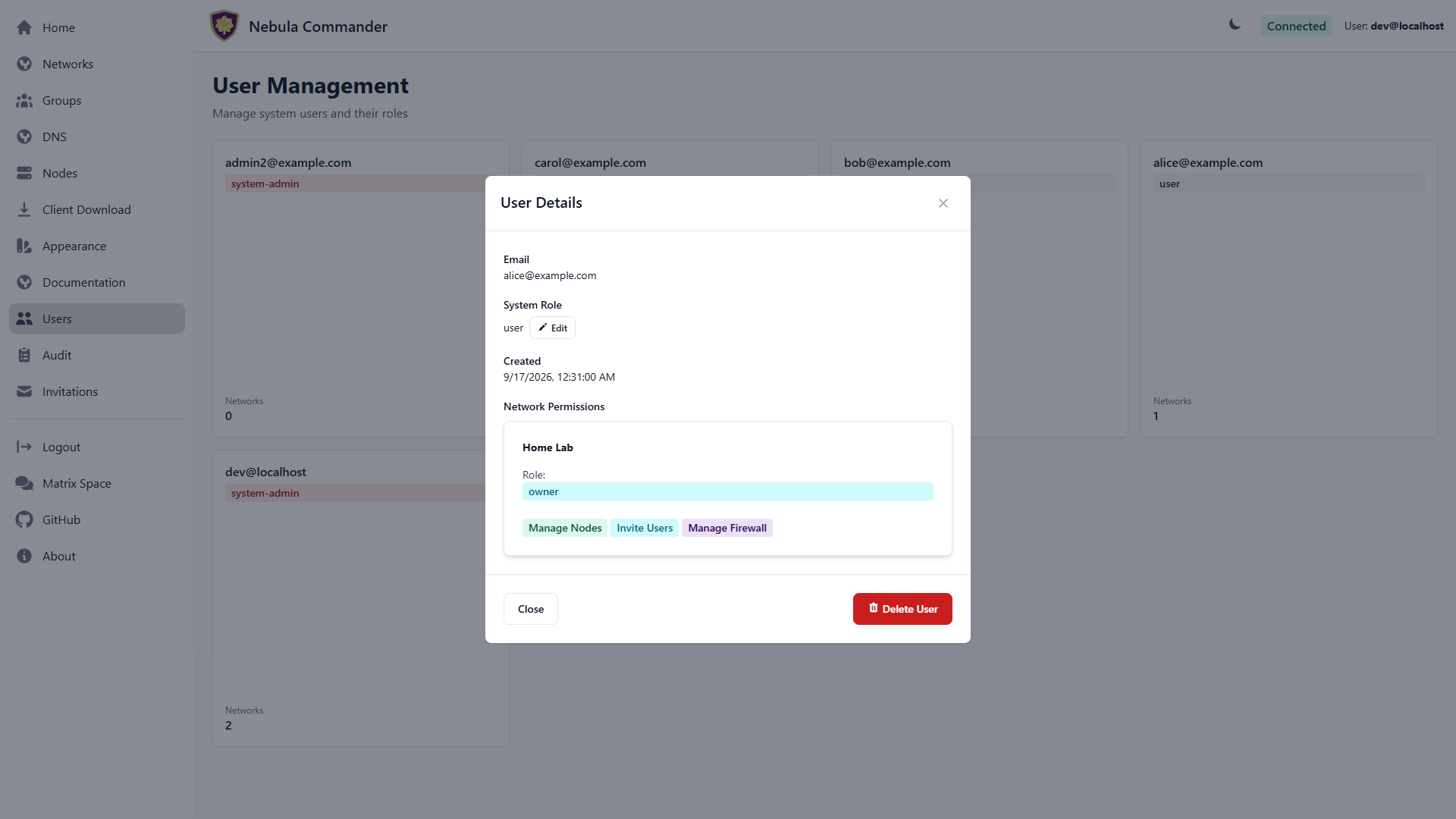 | 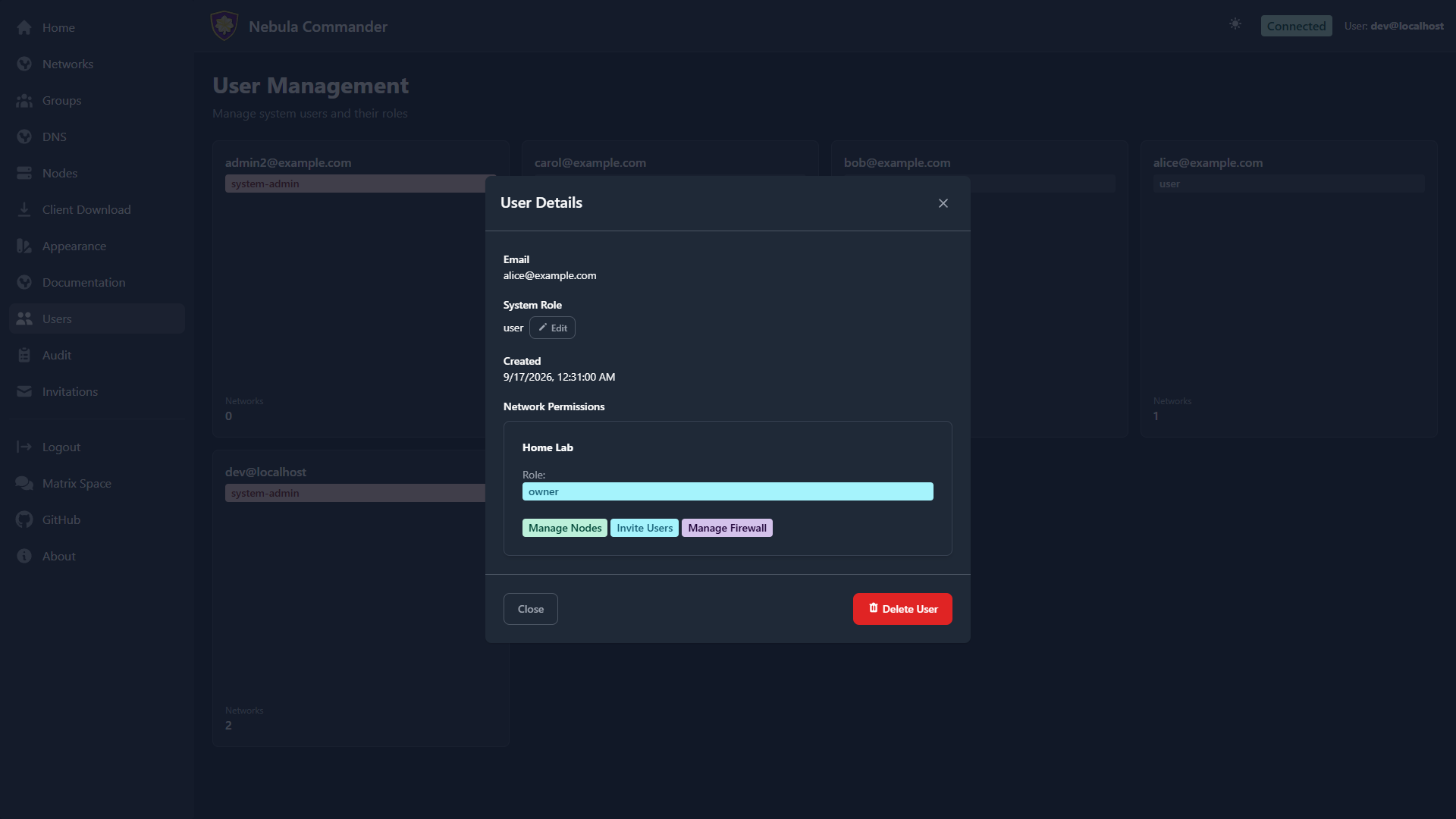 |
- Edit role — click Edit next to the system role to reveal a dropdown
(
UserorSystem Admin) in place, without leaving the modal. Save applies immediately and the modal updates to reflect it. - Delete User — opens a two-step, type-to-confirm delete flow (type the user’s email to confirm) and requires reauthentication, the same as deleting a network or a node. Deleting a user removes all their network permissions; it does not delete nodes they created.
- Reset 2FA — for a user who lost their authenticator app. You sign in again and enter your own two-factor code; the user then sets up two-factor again at their next sign-in. See Security.
System role is separate from per-network permissions: a plain user can still be
a network owner with full control over their own networks — system-admin is
specifically for instance-wide administration (managing all users, viewing the
audit log across every network, and so on).